Promotions & gift cards
Promotions discount the cart automatically at checkout; gift cards are stored-value instruments the store issues and later redeems, with balances tracked across visits.
When to use
Use promotions to run price campaigns without changing product prices, and gift cards to sell stored value that customers spend across visits.
Before you start
- Permissions:
pos:promotions:read(view/pos/promotions) andpos:promotions:write(create/edit);pos:gift_cards:read(view/pos/gift-cards) andpos:gift_cards:write(issue). Applying a promotion or redeeming a card at the till needspos:use. - Products and prices come from the shared catalog; a promotion only references products that already exist.
Create a promotion
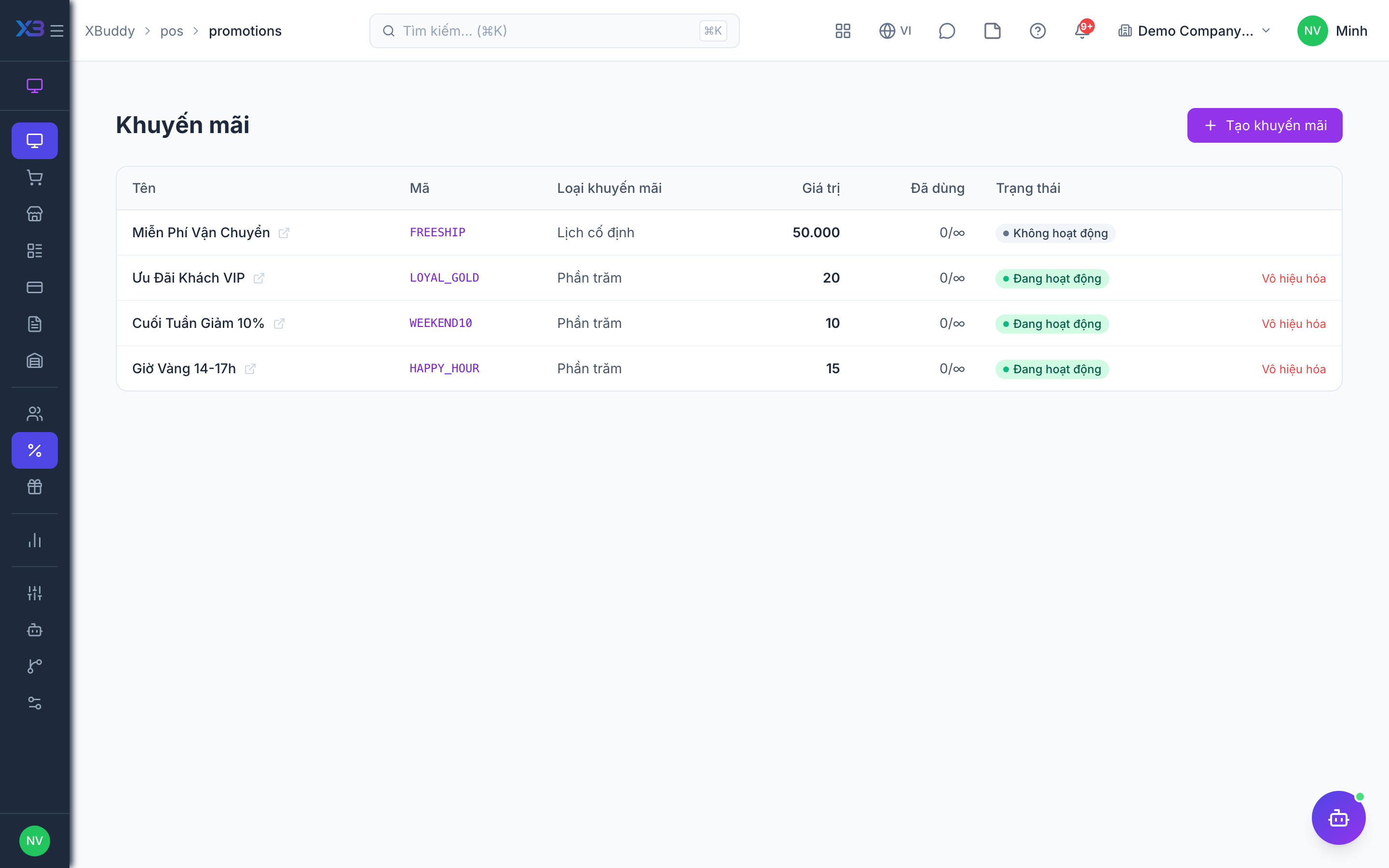
Go to POS → Promotions → New Promotion and set the type (percentage, fixed amount, or buy-X-get-Y), the qualifying products, and the active dates.
Issue a gift card
Under POS → Gift Cards → Issue, set the card value and hand it to the customer; the balance is tracked in XBuddy.
Redeem at checkout
On the Terminal, apply an active promotion automatically or tender a gift card as payment; its remaining balance updates instantly.
Check the result before going live
Open the promotion detail to review its type, qualifying products and active dates. Test it on the Terminal with a sample cart before the campaign starts.
Track a card’s balance
Open a gift card from Gift Cards to see its balance and history. Issuing and redeeming a card are posted to Accounting.
Tips & common mistakes
- Set clear start and end dates; an expired promotion simply stops applying.
- Percentage, fixed and buy-X-get-Y rules behave differently — preview with a real cart.
- Treat a gift card like cash: issue it only after you take payment for it.
- A card cannot be redeemed beyond its remaining balance; tender the rest with another method.
- Gift-card value is not product revenue — it appears in Accounting when issued and when redeemed.