Creating an event
Events are the core building block — a meeting, a call, a block of focus time. Each carries a time range, attendees, a location, and free-form notes.
When to use
Use an event for anything that has a time on your calendar: a call, a site visit, a block of focus time. If you need an agenda, minutes and tracked follow-ups, create a meeting instead (see Meetings & conclusions).
Before you start
- You need the
calendar:readpermission to see the calendar. Creating or editing your own events also needs write access to Calendar; changing events owned by someone else needs the manage right. Ask your admin if the button is missing. - Your admin may have switched on these settings (Calendar settings at
/calendar/settings, needscalendar:admin):
| Setting | Effect | Default |
|---|---|---|
calendar.conflict_detection | Blocks creating or editing an event that overlaps another event of the same organizer (all-day events and reminders are ignored) | Off (On for new companies) |
calendar.past_event_creation_blocked | Blocks events that start in the past | Off |
calendar.external_invites_allowed | Lets you invite people who only have an email address | On |
calendar.attendee_auto_accept | Invitees start as accepted | Off |
Steps
Open the calendar
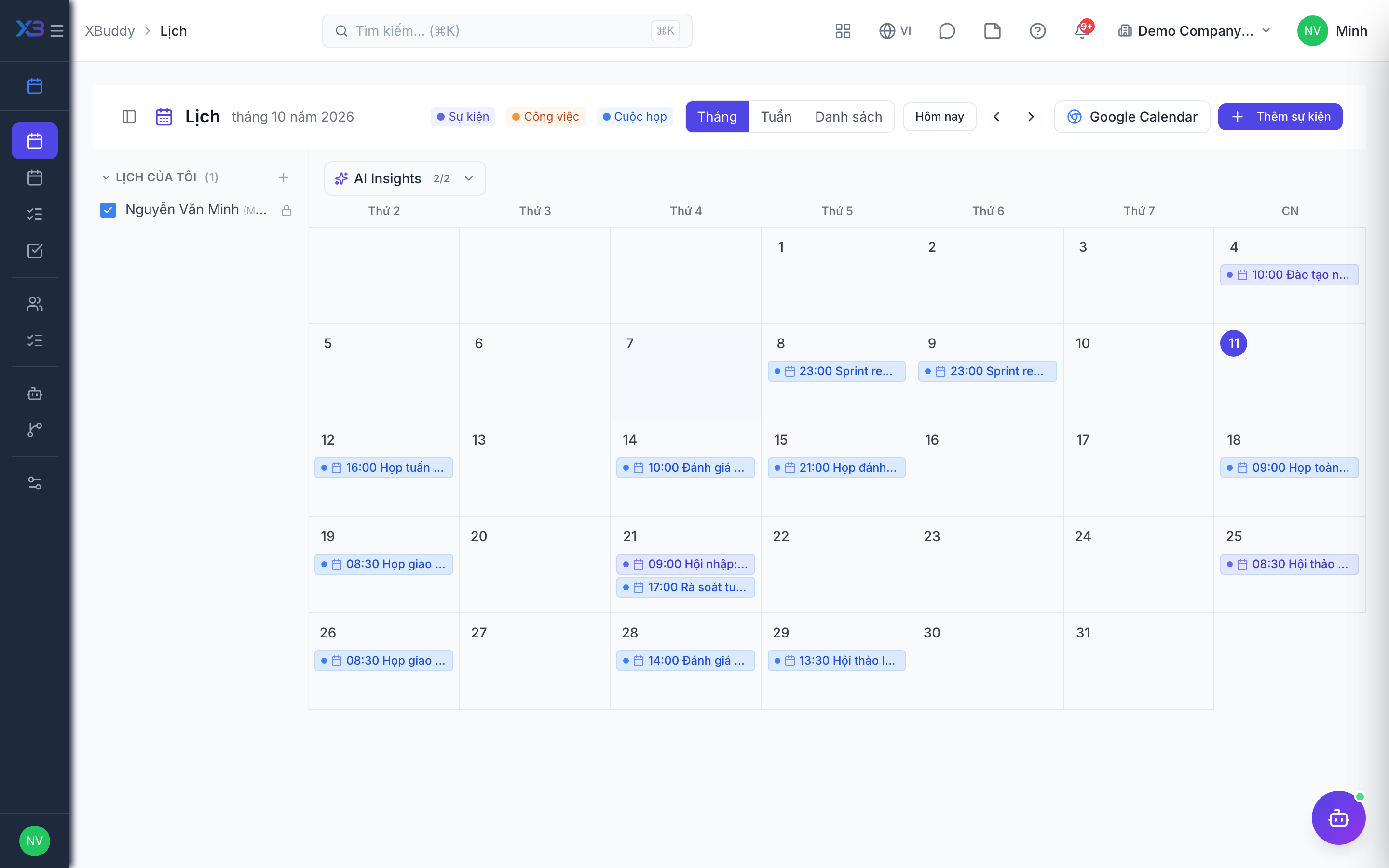
Go to Calendar (/calendar). You land on the Month view by default. The Week view shows a 07:00-21:00 time grid.
Create the event
Click a day (or the New Event button), then set the title, start/end time, location, and attendees. Add notes for the agenda. Set a reminder if you want one before the start.
Link it to a record (optional)
If you open the form from a task, project or contract (the “Schedule” action), the event is linked to that record automatically. Keep the link when you save, so the event can be opened from the record later.
Save and invite
Save the event. Invited attendees are notified and the event appears on their calendars too. Attendees reply with accept or decline (RSVP).
Tips & common mistakes
- If saving fails with a conflict message, the conflict-detection setting is on: pick another time or ask your admin.
- You cannot invite someone by email only when external invites are turned off.
- The “Schedule meeting” action on a CRM deal creates a CRM activity, not a calendar event.
- Cancelled events disappear from the list and from upcoming items.
- Leave requests from HR do not create calendar events by themselves.