Scheduling report delivery
Automate recurring reports so stakeholders get them without logging in.
When to use
Use a schedule when the same report is needed on a rhythm, such as a weekly sales summary for the director or a monthly finance pack for leadership. Delivery is by email as a CSV.
Before you start
- You need
analytics:readto view schedules andanalytics:manageto create or change them. - The toggle
analytics.scheduled_reports_enabledmust be on (default: on). When off, schedules cannot be created and no email is sent. - Recipients must be members of your company. External addresses are not accepted.
- The system re-checks the creator’s permission on the report source at send time.
Steps
-
Open
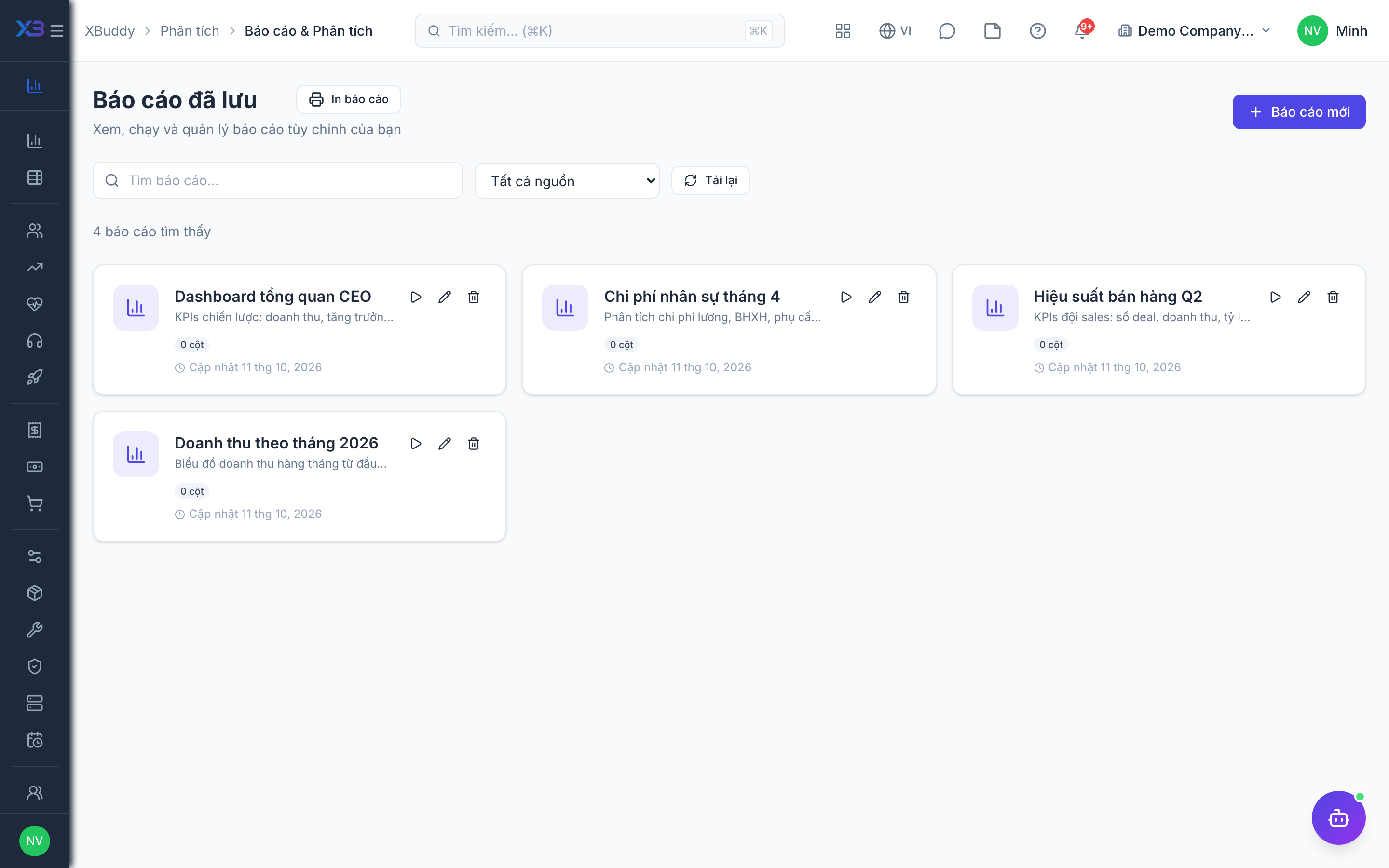
/reports/scheduledand create a new schedule. -
Choose the report and set the frequency (daily, weekly, or monthly) and the time of day.
-
Add the recipients from your company’s members.
-
Save — the report is generated as CSV and emailed on schedule. Use run now to test it.
Options
| Option | Values |
|---|---|
| Frequency | Daily, weekly, monthly |
| Time of day | Hour and minute |
| Format | CSV by email |
Tips & common mistakes
- Send a test with run now before relying on the schedule.
- If a schedule stops delivering, check that the creator still has permission on the source and the toggle is still on.
- Only CSV by email is supported; there is no inline summary or other frequency.
- Remove recipients who leave the company.