Advanced scheduling
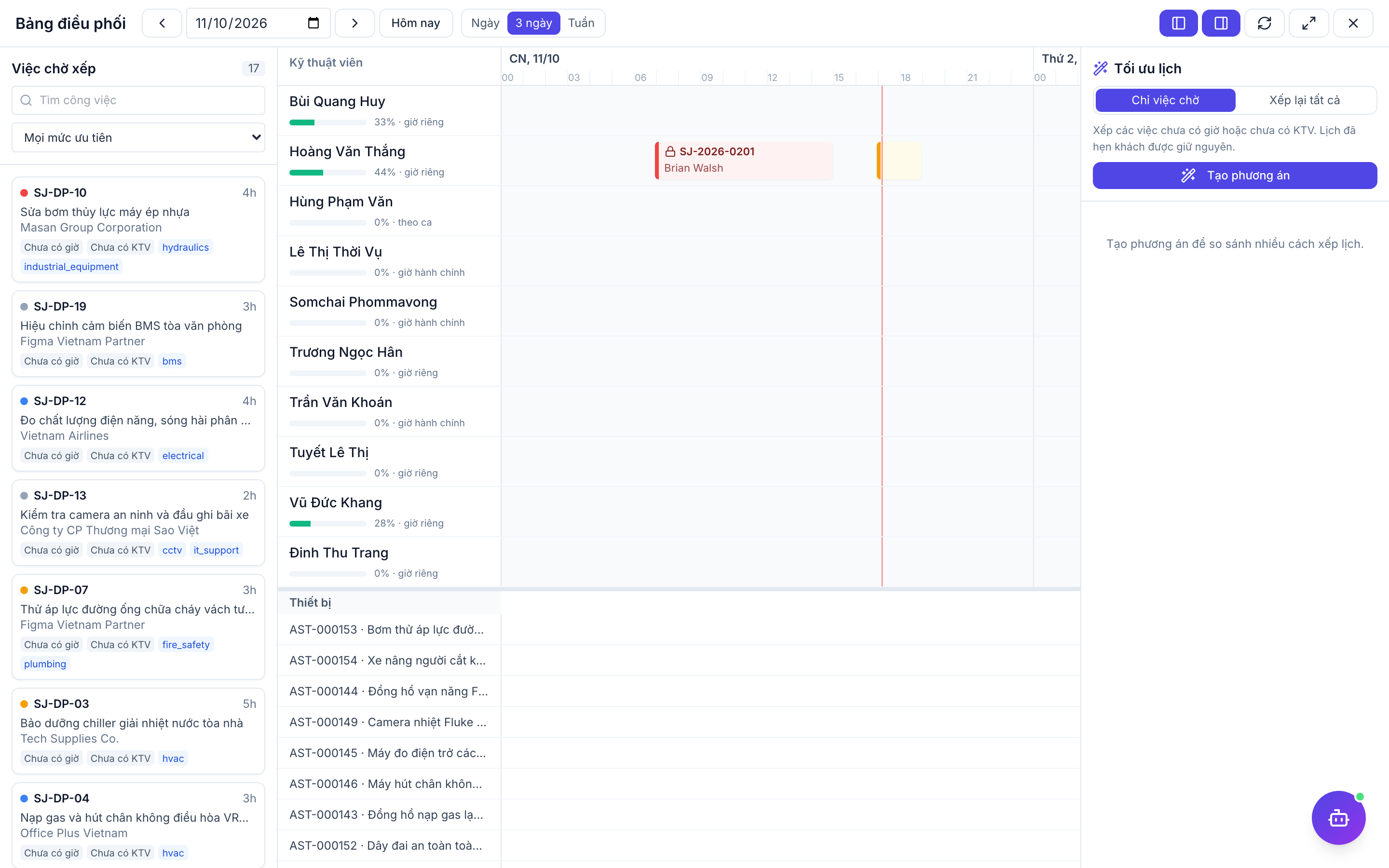
The dispatch board suggests schedules that respect technician hours, skills, SLA and travel, and lets you compare options before applying one.
When to use
Use it when many jobs and technicians make manual scheduling slow, or when SLAs are tight.
Before you start
- Toggles (Settings):
service.advanced_scheduling(default off) enables the dispatch board;service.equipment_scheduling(default off, needs advanced scheduling) books shared equipment. - Permissions:
field_service:readto view/field-service/schedule;field_service:dispatchto create plans and apply them. With the toggle off the board refuses requests.
Open the board
On /field-service/schedule use the button to open the dispatch board (/field-service/schedule/board).
Choose a preset and generate options
Pick SLA first, minimum travel or balanced, and generate plans.
Compare and apply
Review the plans. The AI assistant only explains and ranks them; nothing is applied without you. Apply the chosen plan — the system rechecks it before saving and warns if jobs changed meanwhile.
Handle equipment
With equipment scheduling on, shared equipment is booked together with the job and released when the job is cancelled.
Tips & common mistakes
- Availability combines shifts, personal hours, HR calendar, holidays and leave; fix the source if someone looks unavailable.
- Pending leave only warns; approved leave blocks.
- If apply is refused as “concurrent modification”, reload the board and generate again.
- Moving already-agreed visits is penalised so the plan avoids reshuffling the schedule.