Overtime and edits on time logs
Overtime on project hours is recorded on the line itself and flows into the overtime process after approval.
When to use
Use this when overtime happened on project work. You enter the overtime share when logging the hours; the approver reviews it together with the hours, and approving creates the overtime request on the HR side, so it is not typed twice.
Before you start
- Permissions:
timesheets:writeto log,timesheets:approveto approve. - Toggle
people.overtime_request_from_approved_logs(default on): approving a log that contains overtime creates a pending overtime request in HR. - Toggle
finance.billable_time(default off) decides whether billable fields appear at all.
Log the hours with overtime
When logging the task hours, enter the overtime part of them.
Review and approve
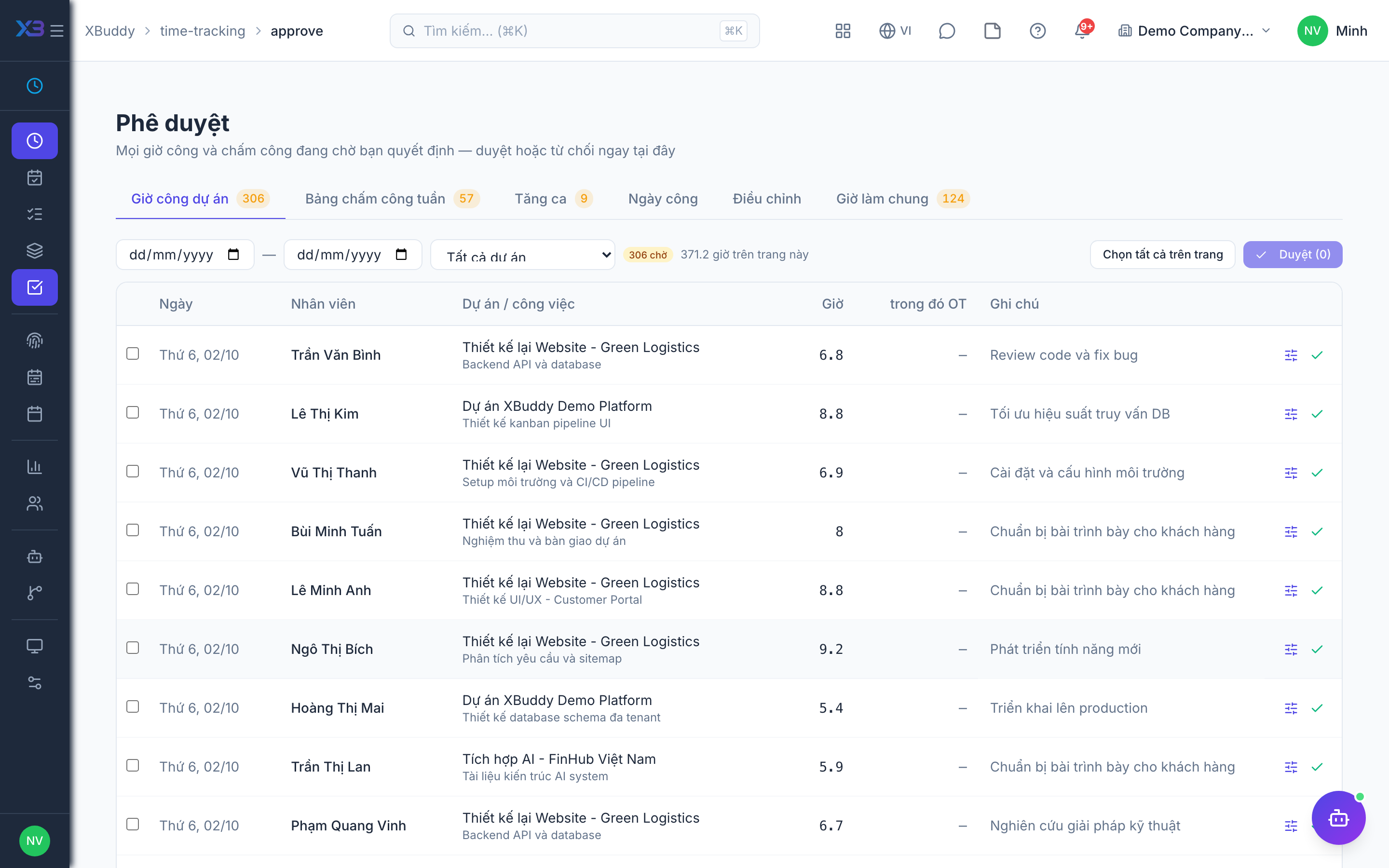
The approver opens Review & approve from the Approvals inbox, checks the hours and overtime, and approves.
Overtime request follows
For a line with overtime, a pending overtime request is created in HR and handled in the Overtime tab.
Rules for editing
| Situation | Result |
|---|---|
| Log is approved or already consumed downstream | Cannot be edited or deleted directly |
| Log is billed | Cannot be edited or deleted |
| Week is locked by an approved timesheet | Cannot be edited or deleted |
Overtime is entered as part of the hours, never more than the total hours for that line.
Tips & common mistakes
- Enter overtime as a portion of the total hours, not as extra hours.
- Use Review & approve in the inbox so the approver sees the overtime before accepting.
- Overtime that was approved on a log still goes through the HR overtime request, so check it in the Overtime tab.
- If a number is wrong after approval, ask the approver to reverse the decision instead of editing.