Signing methods
When to use
Choose the method according to how strong the proof must be. Everyday approvals can use OTP or password; contracts that need legal weight can use a PAdES digital signature with a USB token or a remote HSM.
Before you start
- Reading your saved signature at
/signatures/my-signatureneedssignatures:read. - Company default methods are set at
/signatures/settingsand needsignatures:manage. - Signers who are XBuddy users sign from their in-app inbox; others use the link in their email at
/sign/request/[token]without logging in.
Methods
| Method | How it works |
|---|---|
| OTP | A one-time code verifies the signer. |
| Password | The signer confirms with their password. |
| Biometric (WebAuthn) | The signer registers a device credential once, then verifies with it. |
| PAdES digital signature | Signs the PDF with a USB token or a remote HSM (MISA eSign); long-term timestamps are renewed periodically. |
| External providers | DocuSign, Viettel eSign and VNPT eSign; the PDF must be in Documents. |
Open the signing inbox or link
Open the request from your signing inbox in the app, or follow the emailed link.
Verify your identity
Complete the OTP, password, or biometric check required for the request.
Place your signature
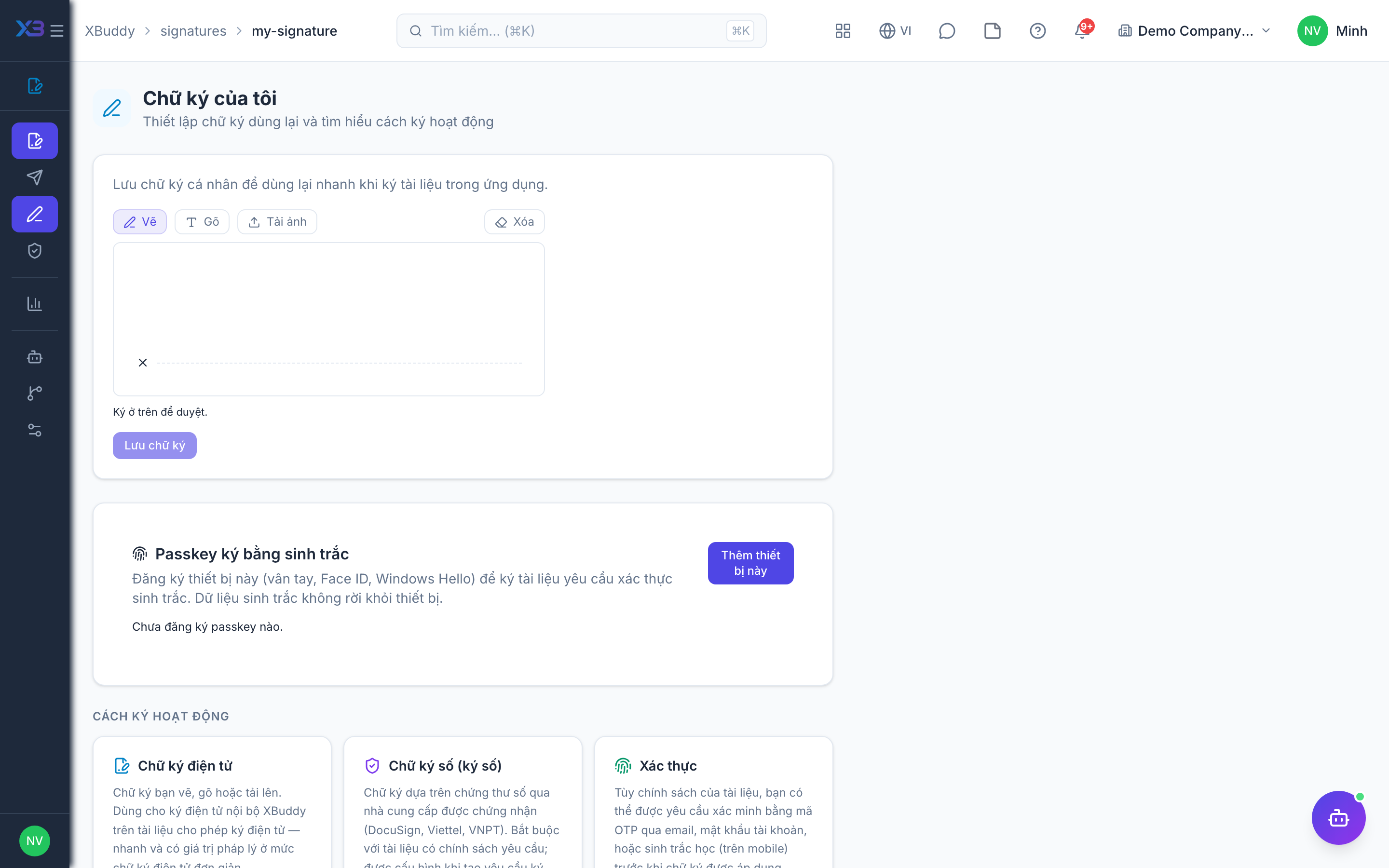
Use your saved signature from My Signature or draw a new one, then complete the fields assigned to you.
Finish or decline
Confirm to finish, or decline if you cannot sign. Declining closes the request as declined.
Tips & common mistakes
- Register your biometric credential before you need it, so the first signing is not blocked.
- A digital signature through an external CA needs the USB token or HSM certificate ready.
- External providers cannot be used until the PDF exists in Documents.
- Opening the link after the request expired will not work; ask the sender to issue a new one.
Related