Connecting a channel (Email, Slack, Telegram, Zalo)
Each channel is connected once in Settings; after that its messages appear in the shared Inbox. Email is fully two-way — outbound replies go through SMTP and inbound mail is polled over IMAP.
When to use
Connect a channel when you want customer messages from that channel to land in the shared Inbox instead of a personal mailbox or a separate app. Typically an IT admin does this once during rollout, then adds more channels as the business opens new ways for customers to reach you. Zalo Official Account is available for the Vietnamese market.
Before you start
- You need the permission
communications:manageto connect channels (the Integrations tab in Settings). Feature toggles and roles in Settings needcommunications:admin. - Have the credentials ready: mailbox details for Email, a Slack workspace admin for the OAuth step, a Telegram bot, or a Zalo Official Account.
- Toggle
communications.email_ingestion: turns on the periodic importer that pulls email from connected mailboxes into the Inbox. It is off by default, and on for newly created companies. If it is off for your company, connected mailboxes are skipped.
Steps
Open channel settings
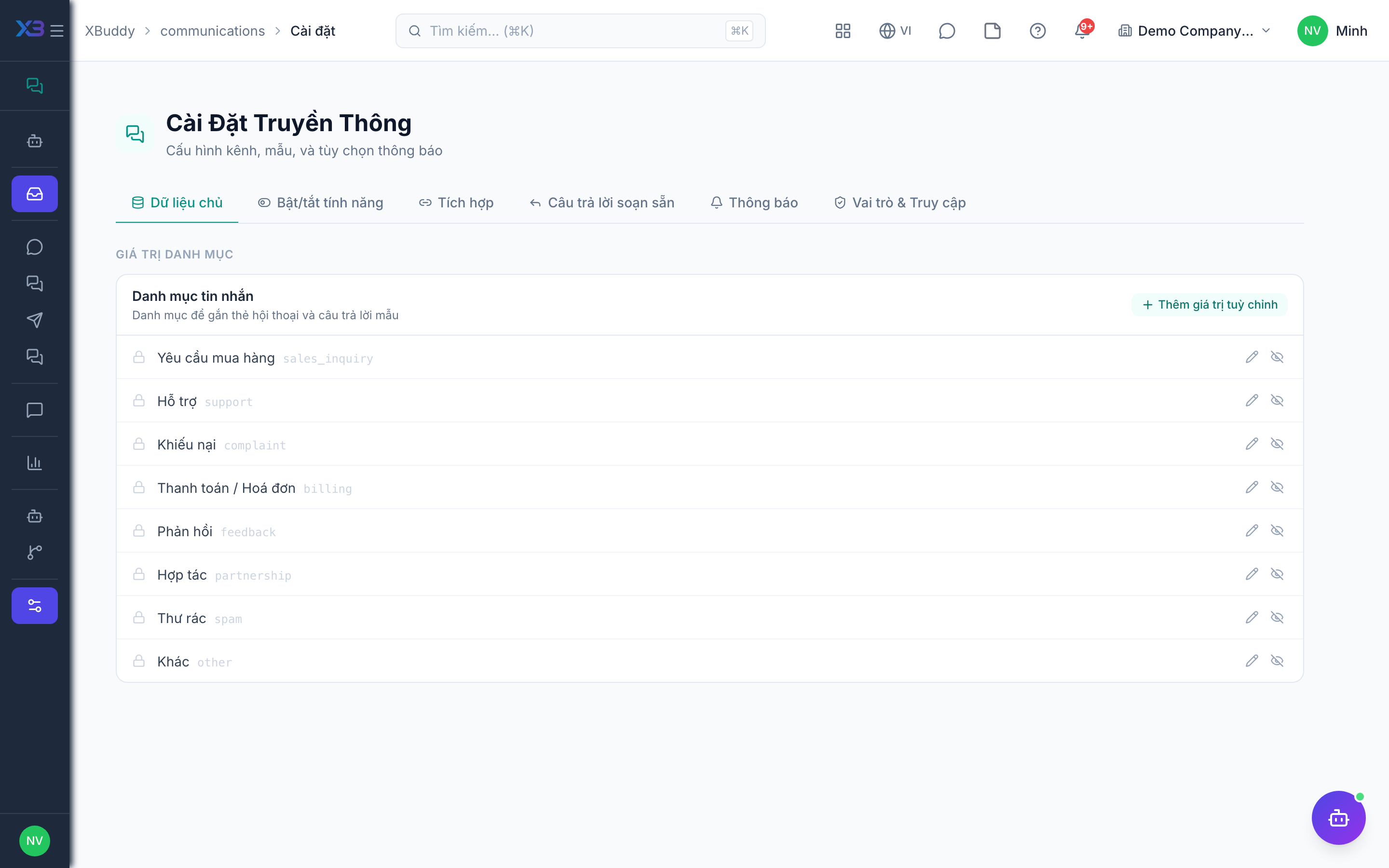
Go to Communications → Settings (/communications/settings) and open the Integrations tab. Choose the channel you want to add (Email, Slack, Telegram, or Zalo).
Enter credentials
For Email, provide SMTP host/port/user/password for sending and IMAP host/port for receiving. For Slack/Telegram/Zalo, paste the bot token / access token — credentials are encrypted at rest.
Test and activate
Save the connection; XBuddy validates it and begins polling. New messages start arriving in the unified Inbox within minutes.
Confirm messages arrive
Open the channel in the sidebar (for example /communications?channel=zalo) and send a test message from the outside. Check that it shows up in the thread list.
Channel notes
| Channel | How it connects | Good to know |
|---|---|---|
| Mailbox connection (OAuth), sync and connection test | IMAP import requires the communications.email_ingestion toggle | |
| Slack | OAuth | Inbound messages appear in the Inbox; replies post back |
| Telegram | Bot set up through a webhook | Two-way messaging with customers |
| Zalo | Official Account set up through a webhook | Signature verification applies only once a key is configured |
| Microsoft Teams | Status, OAuth, disconnect only | Receiving Teams messages is not available yet |
Microsoft Teams currently has a connection only; there is no inbound message webhook like Slack, Telegram, and Zalo have.
Tips & common mistakes
- Email not arriving: check that the
communications.email_ingestiontoggle is on for your company and that the mailbox connection test passes. - Connect with an account that has
communications:manage; read-only users cannot add or remove channels. - Disconnecting a channel stops new messages arriving; plan this before removing a channel customers still use.
- Use one dedicated support mailbox rather than a personal one so threads stay with the team.
- Re-run the connection test after any password or token change on the provider side.