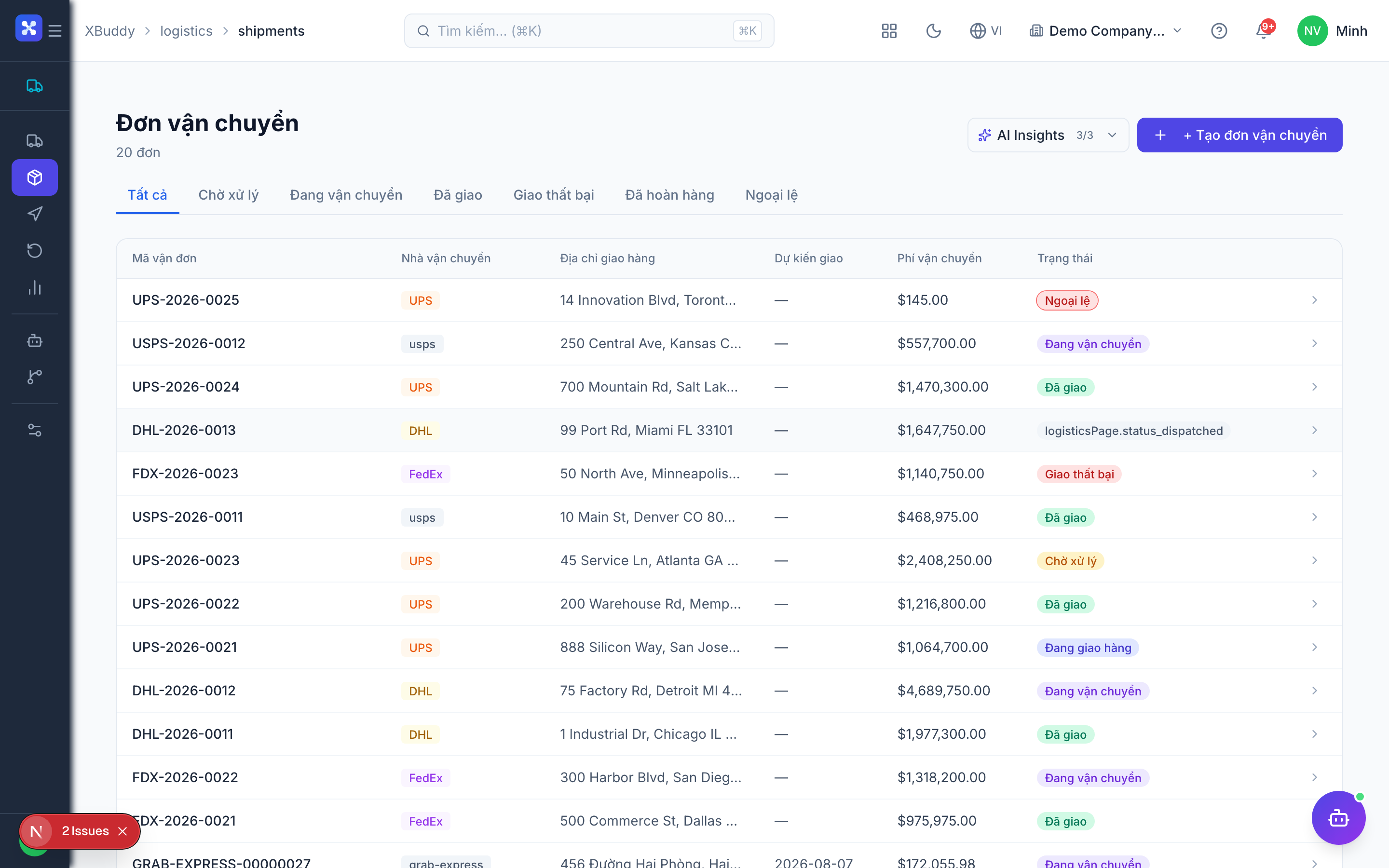
Tracking shipments in transit
Every shipment is a live record you can follow from the moment it leaves the dock until proof of delivery is captured.
When to use
Use this page when you need to know where an order is, move it to the next status, or record a delivery milestone. Shipments are created automatically when a Sales Order is fulfilled, so most of your work here is following and updating them.
Before you start
- Permissions:
logistics:readto view the list and tracking history,logistics:writeto change status or add events,logistics:deleteto delete a shipment. - Visibility of shipments follows the own / team / all data scope assigned to you.
- There are no feature toggles for this app. Logistics is an add-on (
logistics_addon) and must be enabled for your tenant.
Open the shipment list
Go to Logistics → Shipments (/logistics/shipments) to see all active and completed shipments with their current status.
Follow a shipment
Click a shipment to view its stops, assigned carrier, current status, and the Sales Order it came from. Open its tracking tab (/logistics/shipments/[id]/tracking) to read the latest 50 tracking events.
Move it forward
Update the status as the goods leave the warehouse and travel (for example dispatched, then in transit, then out for delivery). Add a delivery event for any milestone worth recording.
Confirm delivery
Update status to delivered by submitting proof of delivery, or record an exception (failed attempt, reschedule) if it didn’t complete. See Proof of delivery for the evidence required.
Shipment statuses
| Status | Meaning |
|---|---|
| pending | Created automatically from a fulfilled Sales Order, not yet sent. |
| dispatched | The goods have left the warehouse. |
| in transit / out for delivery | On the road to the customer. |
| delivered | Proof of delivery captured. Final status. |
| failed / exception | The delivery did not complete; needs follow-up. |
| returned | A delivered shipment that came back. The only way out of a final status. |
| cancelled | Shipment stopped. Final status. |
Final statuses (delivered, cancelled, returned) are locked, so a shipment cannot be marked delivered twice or moved backwards. The actual delivery date is recorded on the company calendar (Vietnam time).
Statuses are updated by people. There is no built-in connection to carriers such as GHN, GHTK or Viettel Post, so the status only changes when someone updates it.
Tips & common mistakes
- Do not look for a “create shipment” step after each sale: it appears by itself when the Sales Order is fulfilled, and will not be created twice for the same order.
- If an expected shipment is missing, check the Sales Order status first; a failed automatic creation is only logged and the user is not notified.
- Device time of a driver can be wrong; the system clamps event times, so check the event order rather than trusting a single timestamp.
- Do not try to reopen a delivered shipment to fix a mistake; use a return instead.
- Dispatching a shipment can send it into approval for high-value orders, so allow time before it moves.
Related