Tracking signature status
Once sent, every request has a live status you can monitor without emailing anyone to ask.
Open All requests
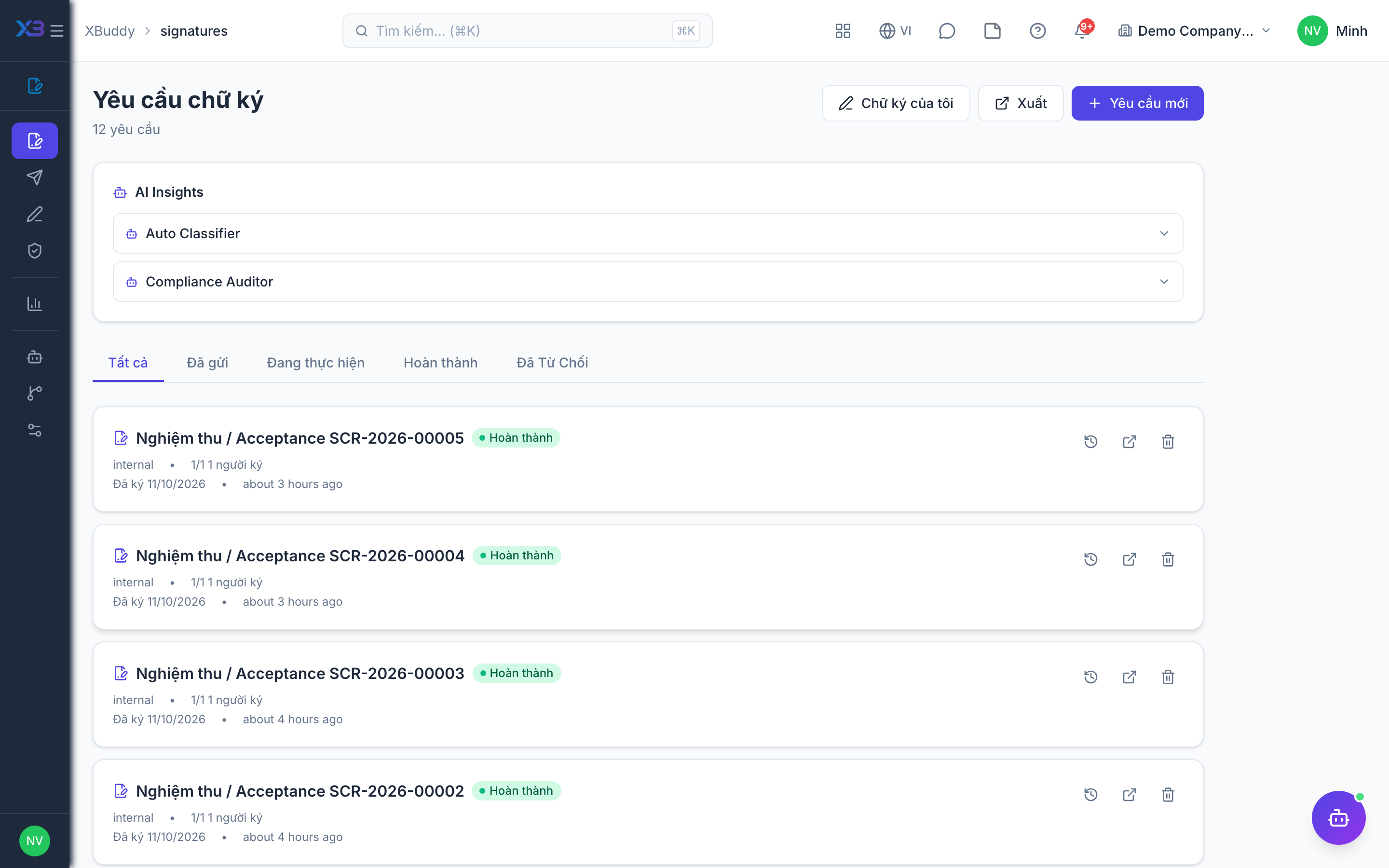
Go to E-Signatures → All to see every request with its current status.
Read the status
Statuses progress sent → viewed → signed → completed; a signer can also decline. Partially signed multi-signer documents show who’s outstanding.
Nudge or resend
For a stalled request, resend the invite or let the Signature Steward send a reminder automatically.
When to use
Use the request list to see which documents are waiting on someone, to chase slow signers, and to open the evidence once a request is complete. It is the daily view for legal, sales and HR owners of signing.
Before you start
- You need
signatures:readto see the list (/signatures), the detail page and the audit trail. - Resend and remind actions require the
signatures:sendpermission. - Signers who are XBuddy users can also sign from their in-app signing inbox; external signers use their emailed link.
Statuses
| Status | What you can do |
|---|---|
draft | Finish and send it, or delete the draft. |
sent | Wait, resend or remind. |
in_progress | Remind the signers who are still outstanding. |
completed | Download the signed file and the completion certificate. |
declined | Review why, then create a corrected request. |
cancelled | Closed by the creator; create a new request if needed. |
expired | Issue a fresh link or create a new request. |
Tips & common mistakes
- Filter the list by status instead of scanning it; start with requests still waiting on signers.
- Open
/signatures/[id]for the detail page: it holds the log, the evidence and the signed download. - A daily reminder runs automatically, so avoid sending manual reminders repeatedly to the same signer.
- Check Reports turnaround and decline figures at
/signatures/reportsto spot recurring bottlenecks.
Related