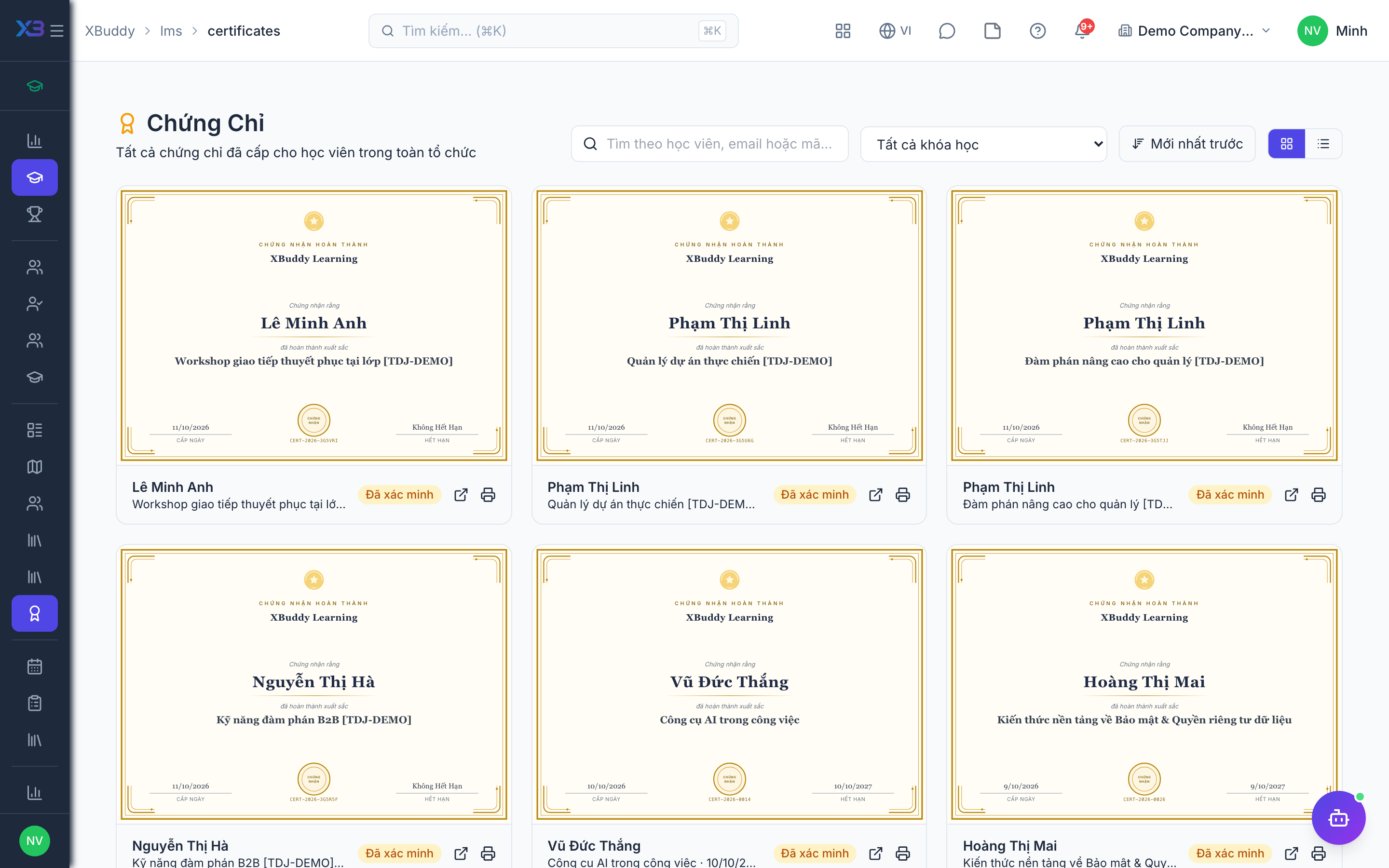
Certificates, badges, and gamification
Certificates prove completion (with expiry for recurring compliance); badges and the leaderboard drive engagement.
When to use
Use this to prove completion to auditors, customers or employees, track expiring certificates, and keep learners motivated with points and badges.
Before you start
- Permissions:
courses:readto view certificates;lms:adminto configure badges and settings. - Toggle
people.lms_auto_issue_certificate(default on): completing a course issues a certificate automatically; off means none is issued automatically. - Anyone can check a certificate at the verification page using its code.
Configure certificates
Go to LMS → Certificates (/lms/certificates) to review issued certificates and their templates. Set an expiry period on compliance courses so re-certification is required.
Set up badges
Go to LMS → Badges (/lms/badges) to define badges awarded for completing paths, streaks, or high assessment scores.
Watch the leaderboard
Go to LMS → Leaderboard (/lms/leaderboard) to see points earned across the organization, driving friendly competition and engagement.
For compliance training (safety, regulatory), always set a certificate expiry. When a certificate lapses, Enrolment Rules and the Learning Coordinator agent re-enrol the learner so nobody drifts out of compliance silently.
What happens at completion
Completion marks the enrollment done, updates competencies, checks in a linked OKR key result, awards points and badges, issues the certificate (if automatic issue is on) and sends notifications.
Expiry
Certificates can expire. The assistant reminds before expiry, and rules or the coordinator can re-enrol the learner.
Tips & common mistakes
- Set an expiry on every compliance course.
- Share the verification code with third parties instead of sending a PDF alone.
- Define badges for outcomes you care about, not for attendance only.
- Check the leaderboard for engagement, not as a performance score.