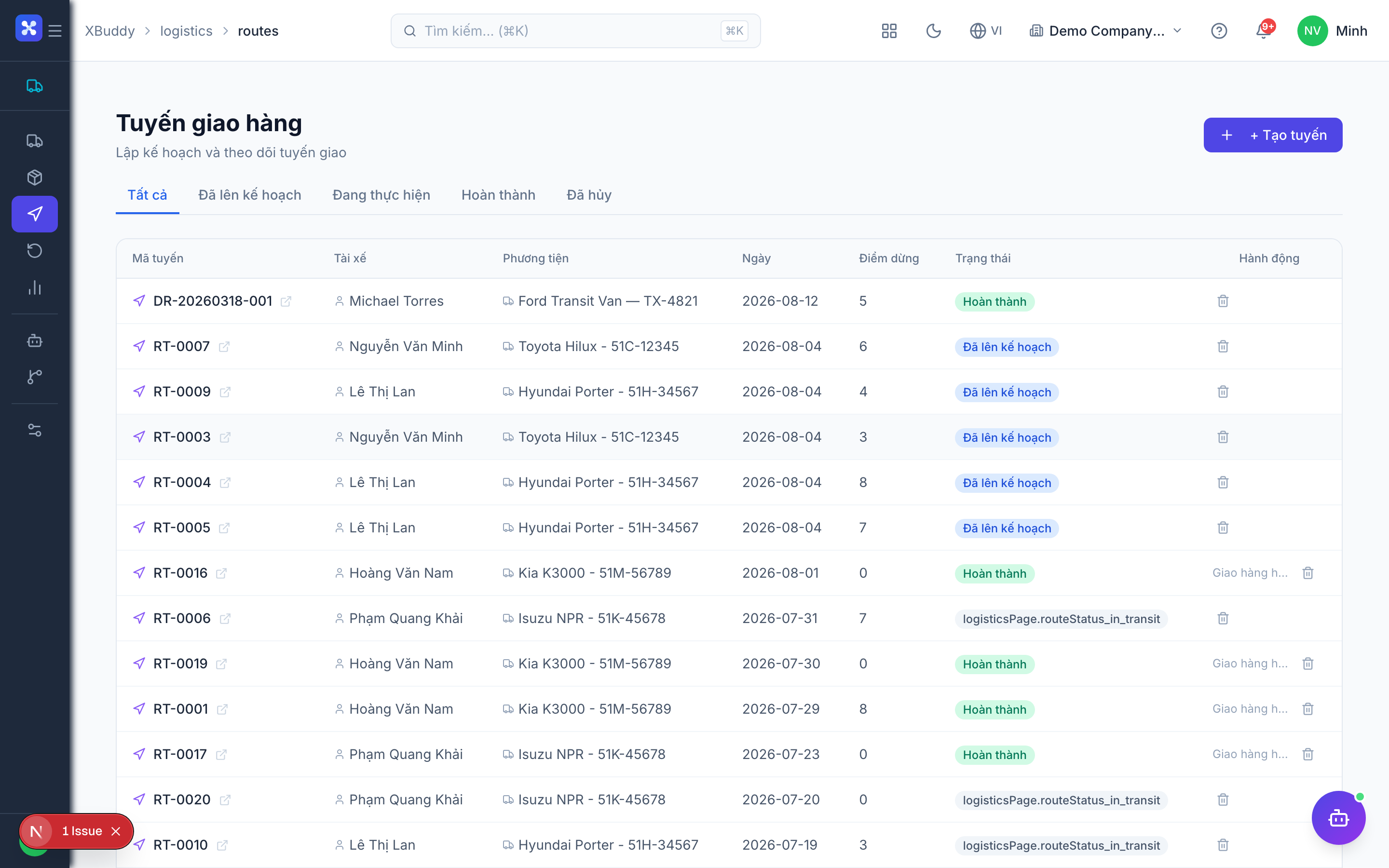
Planning routes
Routes and stop order are planned manually by the dispatcher.
When to use
Use routes when several shipments head to the same area and you want one sequenced run for a carrier or driver.
Before you start
- Permissions:
logistics:readto view routes,logistics:writeto create or change them,logistics:deleteto delete one. - No feature toggles apply.
- Shipments should already exist (they are created from fulfilled Sales Orders).
Build a route
Go to Logistics → Routes (/logistics/routes) and create a route for shipments heading to the same area.
Order the stops
Add stops and set their order manually. Automatic route optimization is not available; the order you enter is the order used.
Assign and dispatch
Attach a carrier or driver to the route; the sequenced stops become their run for the day.
Update route status
Change the route status as the run progresses. Open the route (/logistics/routes/[id]) to review its stops.
A route that is in progress cannot be deleted.
Tips & common mistakes
- Group by area first, then order stops by hand; the AI assistant can suggest a route but does not rearrange stops for you.
- Do not delete a route to correct it once the run has started; update its status instead.
- Routes are filtered by company only, not by own / team scope, so everyone with access in the company sees them.
- Keep the route and the shipment status in step: closing a route does not mark the shipments delivered.
Related