Quotations
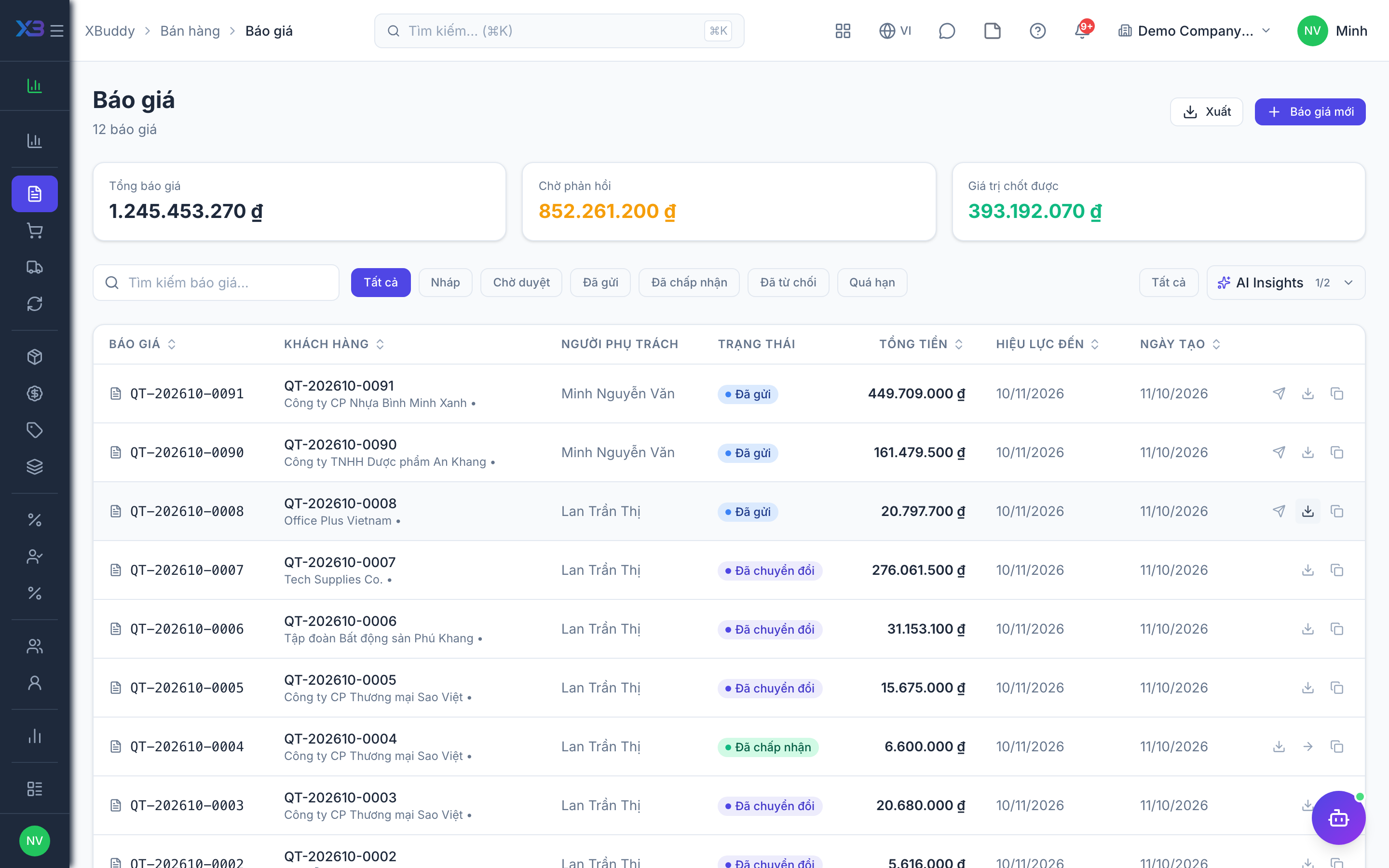
A quotation is the customer-facing price proposal — the starting point of every sale. XBuddy computes subtotals, per-line discounts, and tax automatically, and lets you override the tax amount on any single line when a special rate applies (an export sale, a promotional item, a rounding adjustment). The line grid always shows before-tax and after-tax columns side by side, so nothing is hidden in the total.
Quotations can be built from scratch, generated from an accepted CRM deal (the account, contact, and value carry over automatically), or started from a saved template.
Create a quotation
Go to Sales → Quotations and click New Quotation. Pick the customer, add line items — products from the catalog, stock items, or free-text lines — and set quantity, unit price, discount, and tax per line. Attach section headers, notes, or subtotal breaks between groups of lines if the quote needs visual structure.
Apply pricing automatically
If the selected customer has an assigned price list (see below), matching line items pull their price from it the moment you add them. You can still override any single line manually — the auto-applied price is a starting point, not a lock.
Start from a template
Instead of building from scratch, click Use template to load a saved Sales Quotation Template with its line items pre-filled, then adjust quantities and the customer.
Send and track
Save and send the quotation. Its status moves draft → sent → accepted (or rejected/expired). An accepted quote unlocks the Convert to Sales Order action; a rejected or expired quote can be cloned into a fresh draft.
Convert once it’s accepted
Click Convert to Sales Order. Line items, prices, customer, and any attached notes carry over untouched — nothing needs to be re-typed. The quotation is stamped converted so it cannot accidentally be converted a second time.
A quotation line can be a product line, a service line, or a purely presentational section/note/subtotal line. Product and service lines behave differently once the order is confirmed — see Sales Orders below.