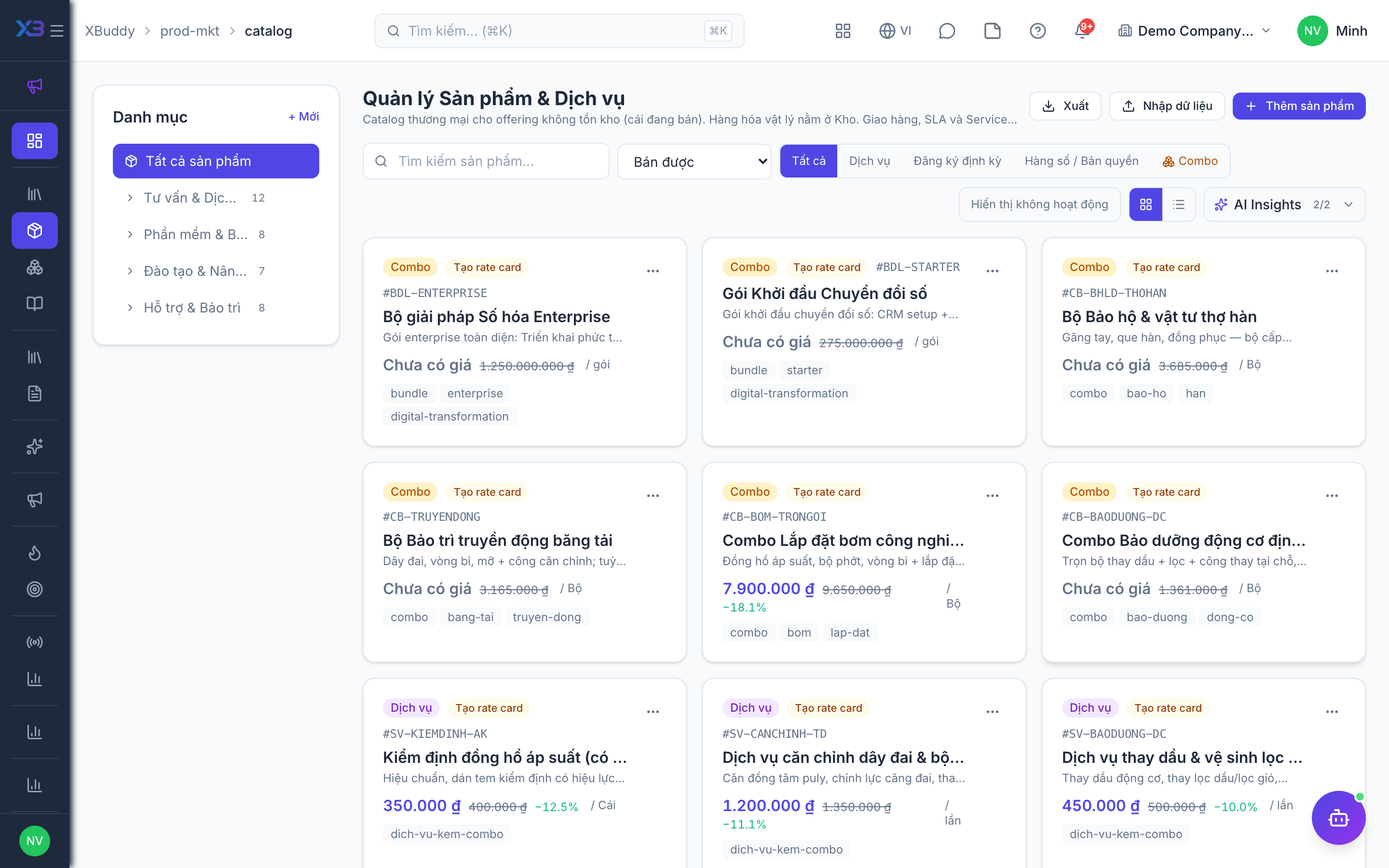
Product & Service catalog
The catalog at Product & Marketing → Product Catalog holds everything you sell that does not consume tracked stock — services, subscriptions, digital downloads/licenses, and bundles. (Physical goods you resell live in Inventory, not here.)
How it works: the catalog is company-wide master data — every product or service is visible to the whole company rather than scoped to an individual owner. Once you mark an item sellable, it is picked up by the same line-item search that Sales uses for stock items, so quoting a mix of a subscription plan and a physical good happens from one picker. Selling prices of catalog items are managed in Sales → Selling Prices (versioned, with history and approval); Product & Marketing only displays them. Quantity breaks are price-list lines with a minimum quantity in Sales (price lists cover both catalog items and stock items); each package/variant (for example “Monthly” and “Annual”) is its own catalog item.
When to use
Use the catalog when you sell services, subscriptions, digital products, or bundles that never decrement warehouse stock, and you want one place for their descriptions, media, and sellable flag. Use the Product Library when you want to see stock and non-stock items together.
Before you start
- Permissions:
products:readto view the catalog, Product Library, stock items, and catalogs;products:writeto create or edit items and build catalogs. Prices are read-only here: changing a price, tax rate, setup fee, or pricing currency needsselling_prices:writein Sales -> Selling Prices. - Toggles:
business.catalog_public_images(default On) stores uploaded product images publicly so the URL can be used for catalogs and websites; videos and documents stay private.business.catalog_video_max_mb(default 50) caps the size of catalog videos in MB. - Physical goods are mastered in Inventory. In this app you only add marketing content to them (see the Product Library and stock item pages:
/prod-mkt/library,/prod-mkt/stock-items).
Step by step
Open the catalog
Go to Product & Marketing -> Product Catalog (/prod-mkt/catalog). The page is titled “Products & Services” because it covers non-stock goods too.
Add a sellable
Click New Product and choose the type: service (human-delivered work), subscription (recurring plan), digital (license/download), or bundle (a packaged combination). The create form does not accept a price; set it in Sales afterwards.
Enrich the content and media
Open the item to edit its description, marketing content, and images or video. Keep video files under the size limit configured in settings.
Check the price
The item shows its selling price, list price, and discount as read-only. If it is wrong, ask a user with selling_prices:write to fix it in Sales -> Selling Prices. Create a separate item for each package or variant (for example “Monthly” and “Annual”).
Use it in Sales
Once the item is marked sellable, it appears in the unified Sales line-item picker alongside sellable stock items, each tagged stock vs. non-stock so you never confuse the two.
Tips & common mistakes
- Do not type prices into the catalog: they are a read-only view of Sales -> Selling Prices, so a wrong price is fixed there.
- Do not create the same physical product twice. Stock items are mastered in Inventory; add marketing content from the stock item page instead.
- One package or variant equals one catalog item. Quantity breaks are price-list lines with a minimum quantity in Sales.
- If an item does not show up in a Sales quote, check that it is marked sellable.
Related