Vendor portal
The vendor portal lets a supplier view its orders and send quotes without an XBuddy account.
When to use
Use it to stop collecting quotes by email. The vendor opens a tokenised link, sees its purchase orders and open RFQs, and submits a quote that lands directly on your RFQ.
Before you start
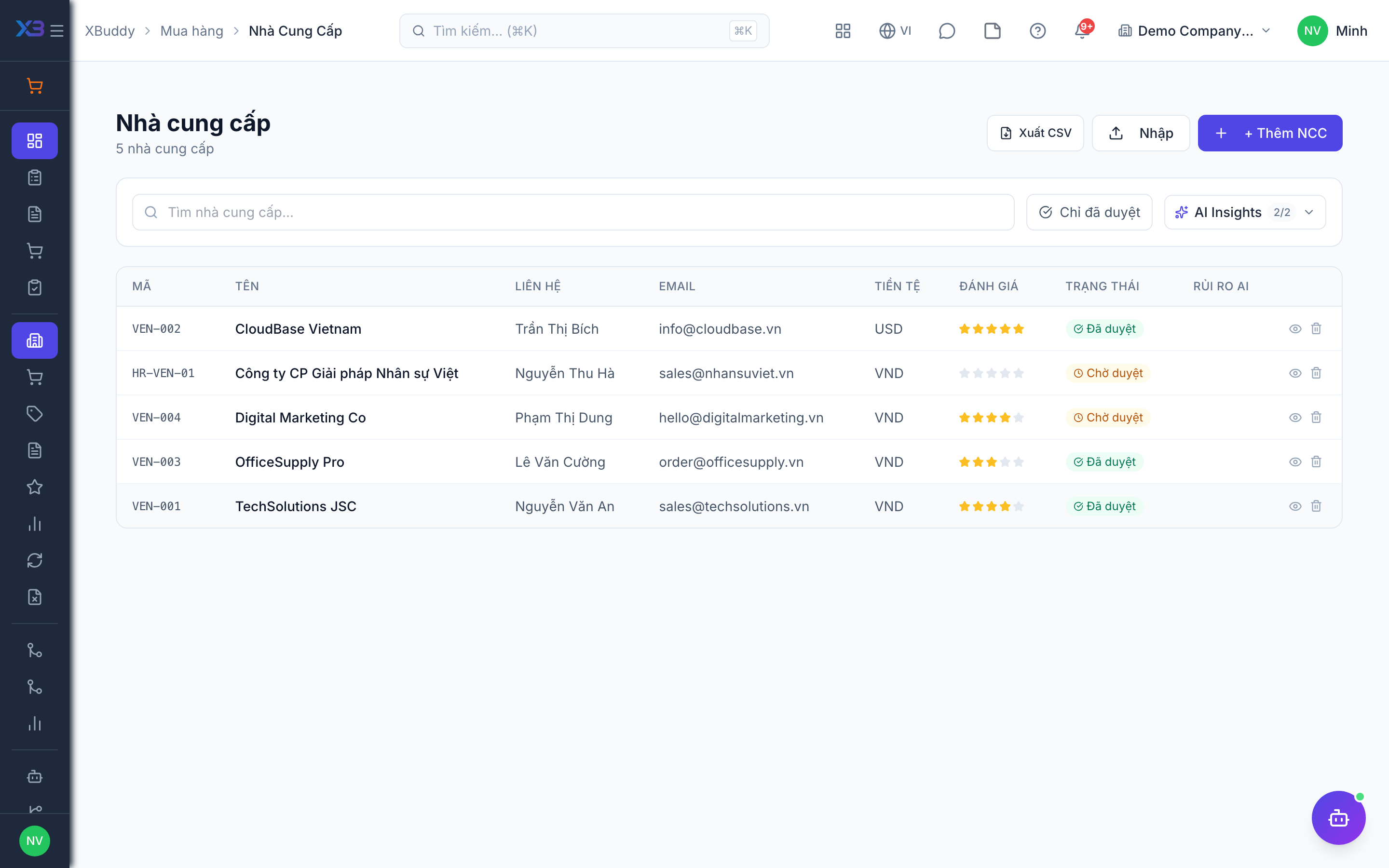
- Invite vendors from
/procurement/vendors(needs the vendor portal manage permission). - RFQs are at
/procurement/rfqs; reading needsprocurement:read. - Toggle
procurement.require_quote_attachment(default on) means portal quotes must carry a file.
Step by step
Invite the vendor
On the vendor record, send a portal invitation. The vendor does not need to create an account: it uses a link with a token.
Share an RFQ
On an RFQ, create a portal link and send it to the vendor.
Vendor submits the quote
The vendor sees its purchase orders and the RFQs addressed to it, and submits a quote for an RFQ.
Compare and award
The quote appears on the RFQ next to the others. Score and award as usual.
Tips & common mistakes
- Treat a portal link like a password; send it only to the vendor contact.
- The portal only supports viewing purchase orders and RFQs and submitting quotes; it does not cover bills or payments.
- Portal access is not tied to your data scope, it is limited by the vendor token.
- If a vendor cannot attach a file, the quote is refused while the attachment toggle is on.