Authoring an internal article
Capture know-how so the whole team can reuse it.
When to use
Write an article whenever an answer has been given more than once in chat, or a process lives only in one person’s head. The editor supports markdown with tables, code and images, and article layouts for FAQ, Procedure and Decision tree.
Before you start
- You need
kb:writeto create and edit articles;kb:readis enough to read them. - Publishing may require review. This is controlled by the toggle
knowledge.approval_required_for_publish(see the callout below). - Version history depends on
knowledge.version_control(default: on).
The default of knowledge.approval_required_for_publish is currently inconsistent: when it was never set the backend treats it as off, but the settings screen displays it as on. Open the settings screen and save it explicitly so the behaviour is certain.
Steps
-
Go to
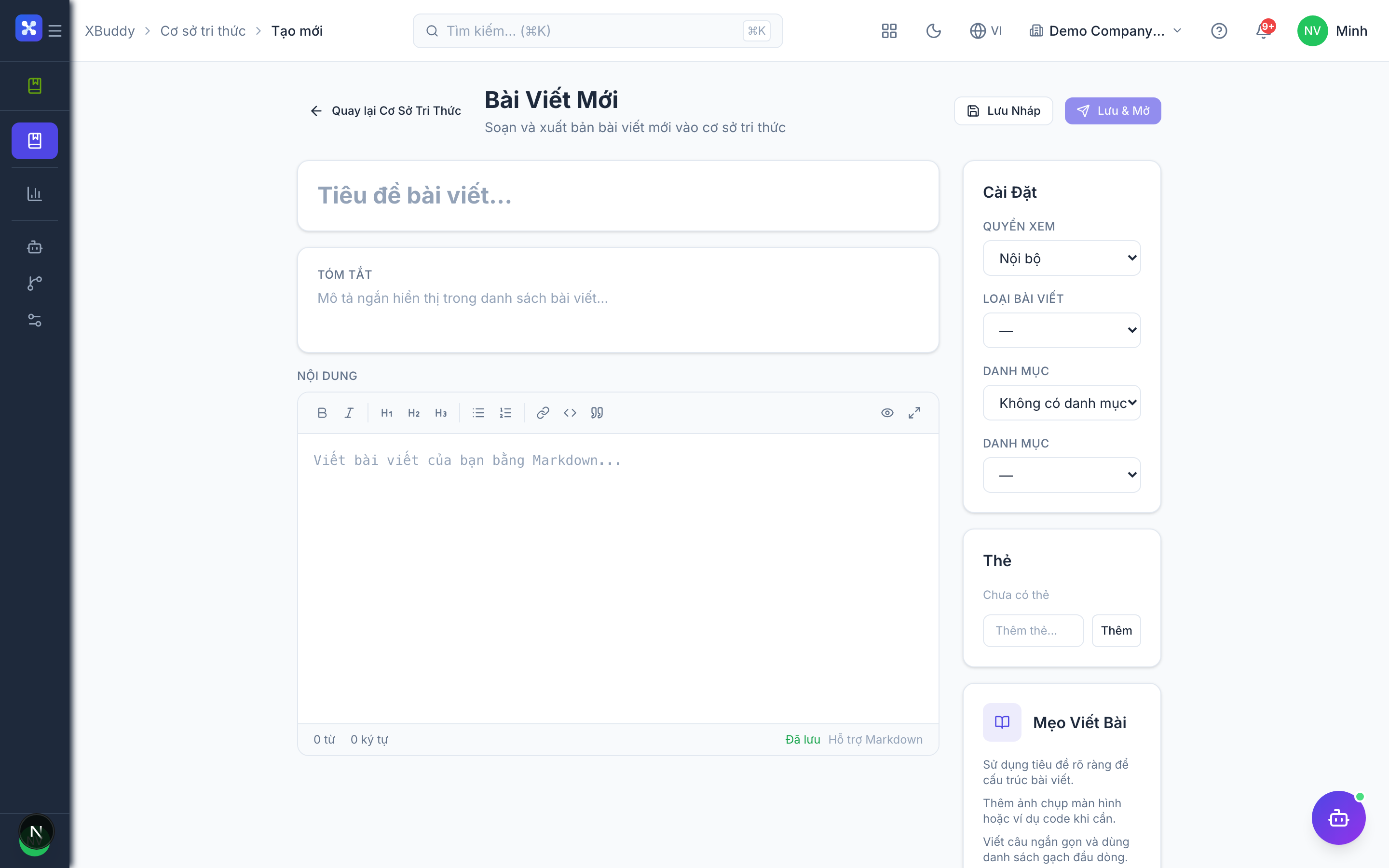
/knowledge/kband click New Article (opens/knowledge/kb/new). -
Add a title, choose the article layout (FAQ, Procedure or Decision tree), pick a category, and write the body in the markdown editor.
-
Add tags so the article surfaces in related searches.
-
Save as Draft to keep working, or send it for review. If review is not required for your company, you can publish directly.
-
To change an article later, open it and use edit (
/knowledge/kb/edit/[id]). The detail page also offers print.
Article statuses
| Status | Meaning |
|---|---|
| Draft | Being written; only authors work on it |
| Review | Waiting for a reviewer (only when review is required for publishing) |
| Published | Visible to everyone who has kb:read |
| Archived | Retired from active use |
Tips & common mistakes
- Always pick a category: an uncategorized article never appears on the public portal and is harder to browse.
- Keep one topic per article; use the Procedure layout for step lists and FAQ for short questions.
- If an article cannot go straight from draft to published, it is because review is required; send it for review instead.
- Use tags consistently (see Categorizing the wiki) so searches find the article.