Customer invoices
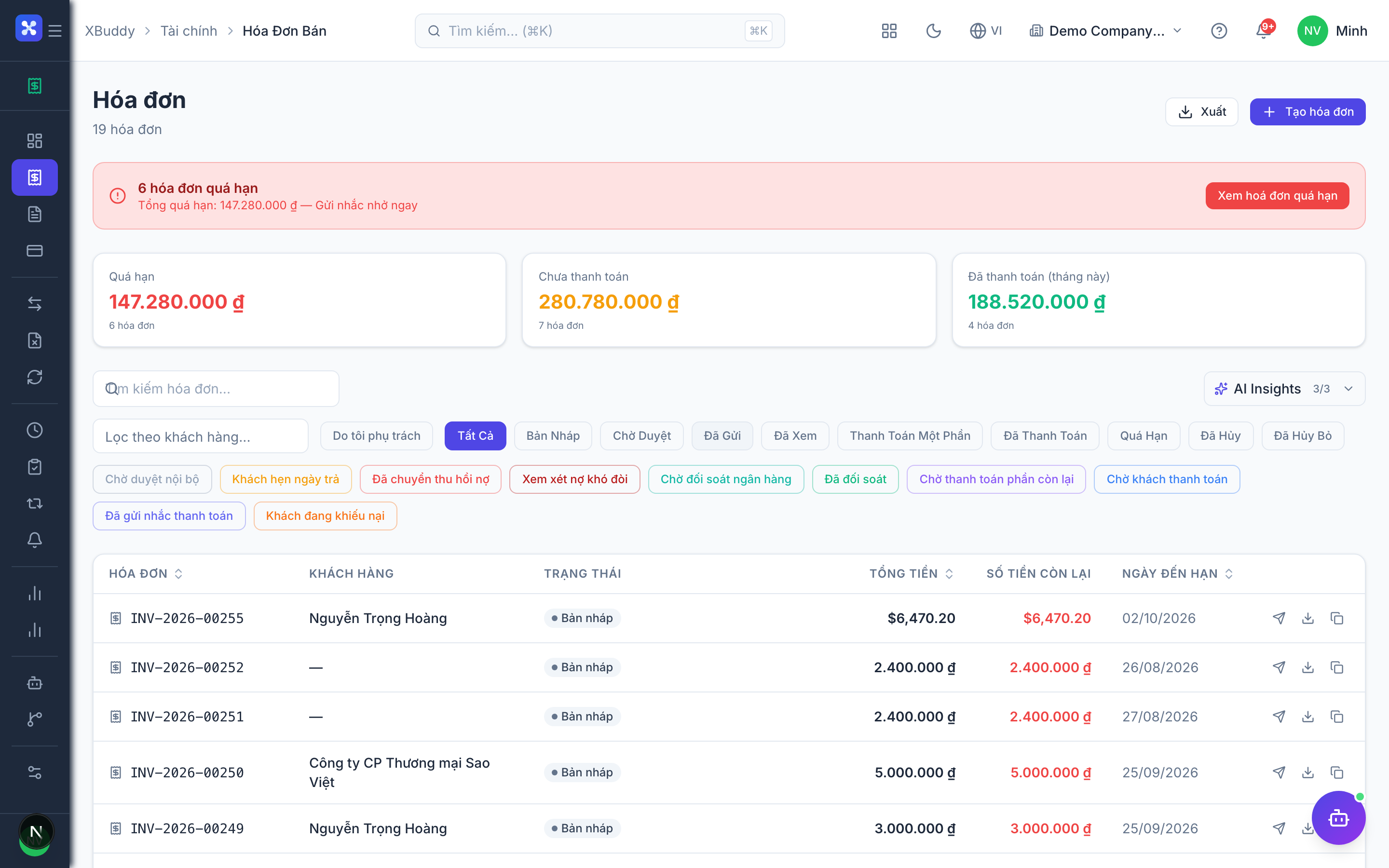
Invoices bill your customers. Create one from scratch, from a won CRM deal, or from a fulfilled sales order. XBuddy generates a compliant PDF, sends it, and tracks the payment status through to paid.
Create the invoice
Go to Finance → Invoices → New Invoice. Pick the customer, add line items (or pull them from a sales order), and choose the VAT rate per line.
Edit before you send it
While an invoice is a draft — or has been sent back as rejected during approval — every part of it is editable: the customer, the due date, the notes, and every line item (name, quantity, unit price). Open the invoice and click Edit to change any of these in place. Once you send it, the commercial terms are locked — correct a sent invoice with a credit note rather than editing it after the fact.
Send it
Click Send to email the PDF to the customer, or download it. The invoice status moves to sent.
Track payment
As payments arrive they are matched against the invoice; status advances to partially paid or paid. Overdue invoices are eligible for dunning.
Tracing where an invoice came from. Every invoice detail page shows a Document Chain — an interactive lineage view of exactly which documents fed into it and what it produced. For an order-driven invoice that’s typically Quotation → Sales Order → Delivery Order → Invoice → Payment; for a time-and-materials invoice it’s the specific timesheet entries that were billed on it. The chain is scoped strictly to that invoice’s own lineage — it won’t surface unrelated documents that merely happen to sit on the same project, so what you see is always what actually produced (or came from) this exact invoice.