Work orders
A work order is a repair or service job on an asset: assign a person, record labour and parts, complete it and bill the supplier.
When to use
Use it for repairs and maintenance that need an owner, parts and a cost record. Create one from an asset, a maintenance record or an internal ticket.
Before you start
- Open
/asset-management/work-orders. Permissions:assets:readto view,assets:writeto create, assign and bill; completing issues parts and needsinventory:write; billing also needsinvoices:write. - Parts come from Inventory as a goods issue.
Create
Open /asset-management/work-orders/new or start from the asset or maintenance record, which fills in the link.
Assign
Choose the person responsible; a work order cannot be “assigned” without one.
Add labour and parts
Add planned parts and labour as the work goes. Adding a part line does not move stock yet.
Complete
Use the Complete action. It releases reservations, issues the parts from stock, returns any tools and stamps the completion.
Bill the supplier
For outsourced work, create the supplier bill. A vendor and a cost greater than zero are required.
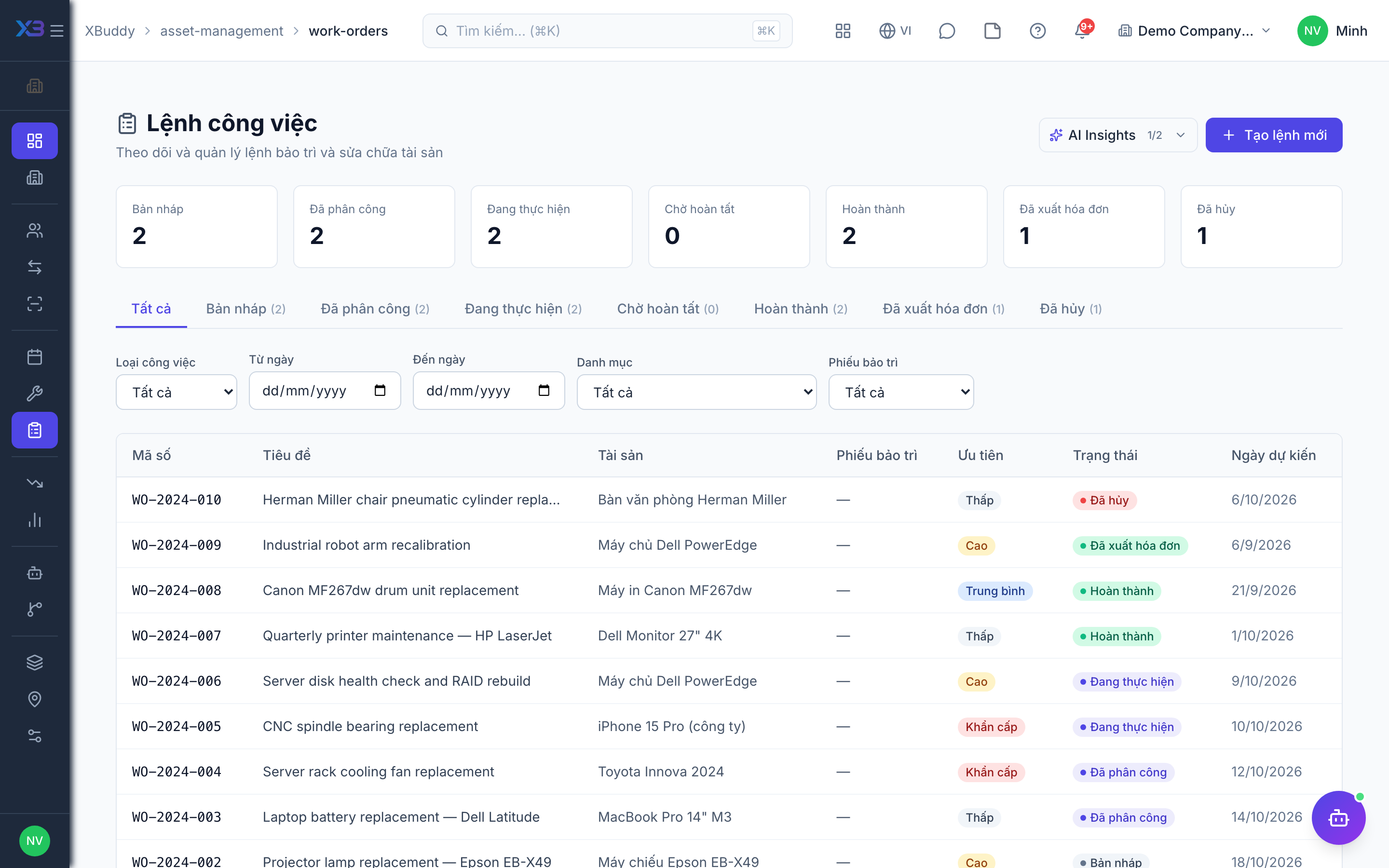
Statuses
| Status | Meaning | Who moves it |
|---|---|---|
| Draft | Created, no owner yet. | Creator (assets:write). |
| Assigned | Owner set. | Coordinator (assets:write). |
| In progress | Work started. | Assignee. |
| Completed | Parts issued, cost recorded. | Assignee, via Complete. |
| Invoiced | Supplier bill created. | User with assets:write and invoices:write. |
Tips & common mistakes
- Always complete through the Complete action — changing the status by hand is not allowed, and it is the step that moves stock.
- Parts that do not leave stock until completion show as planned or reserved — check stock before starting.
- A bill cannot be created without a vendor and a cost.
- Tools used on the order are tracked as assignments and returned on completion.