Preventive maintenance schedule & work orders
Maintenance keeps assets running. A schedule defines recurring service (by time or usage) and automatically raises work orders, which the maintenance team executes and closes.
When to use
Use it for assets with recurring service so due maintenance becomes a task, not a memory.
Before you start
- Open
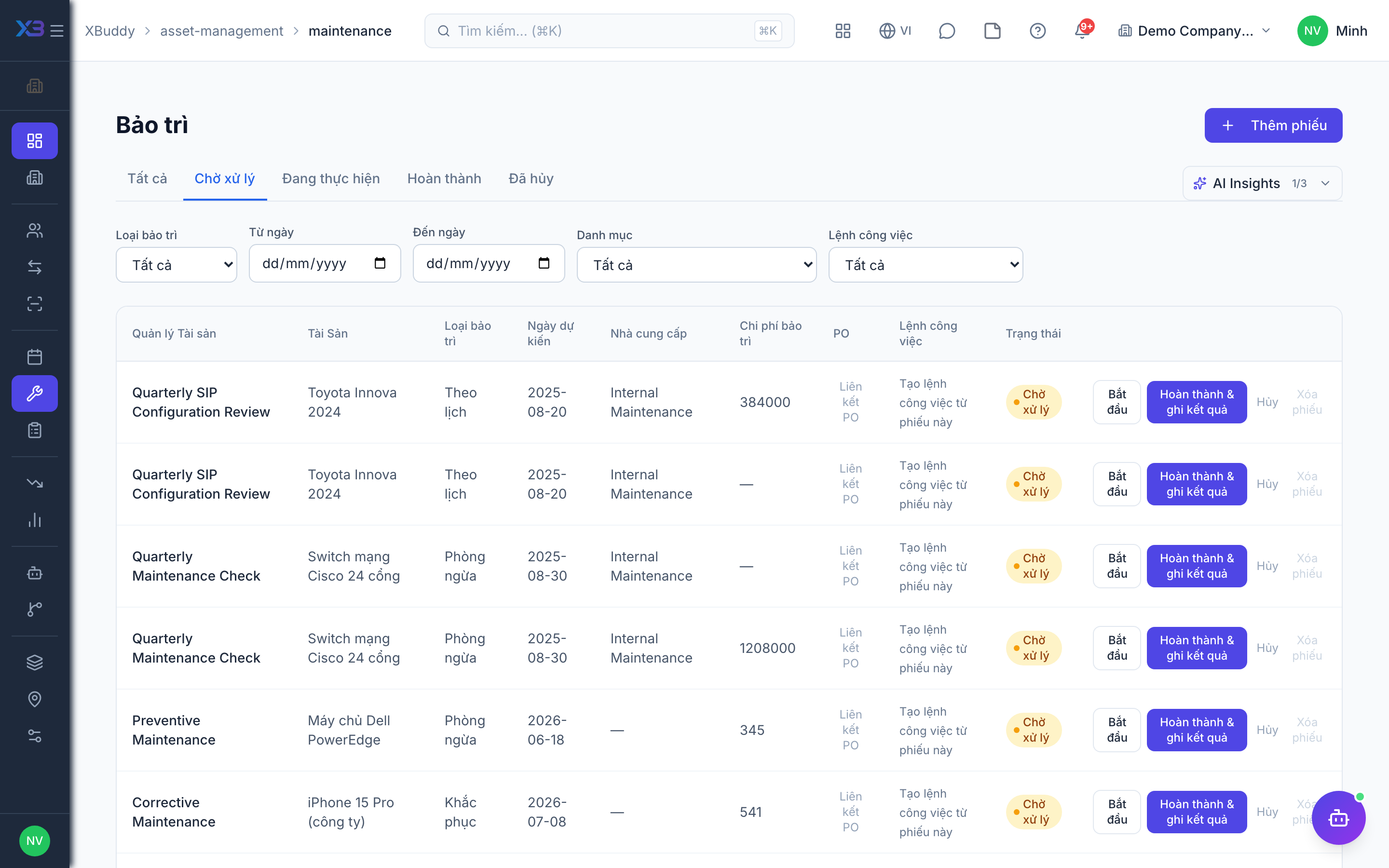
/asset-management/maintenance/schedule(calendar) and/asset-management/maintenance(records). Permissions:assets:readto view,assets:writeto create and complete. - Toggles:
asset.pm_auto_generate(default off) creates due maintenance records every night from the category cycle;asset.pm_auto_create_work_order(default off, needs the first) also creates a draft work order for each one.
Define a schedule
Go to Asset Management → Maintenance Schedule → New Schedule, pick the asset (or category), and set the interval and checklist.
Auto-generate work orders
When a schedule is due, XBuddy raises a maintenance work order in Asset Management → Work Orders and assigns it.
Execute and close
The team completes the work order, logs parts and labor, and closes it — the cost rolls up against the asset.
Complete a maintenance record
Complete a record with its results and the parts used. Parts are issued from stock and the cost is added to the asset. If a supplier is set, a supplier bill is created; if that failed, you can retry it.
Raise a work order from a record
When the job needs more than a quick service, create a work order linked to the maintenance record.
Tips & common mistakes
- Without the auto-generate toggle, schedules show what is due but do not create records — turn it on if you want automation.
- Set the maintenance cycle on the category so every new asset inherits it.
- Complete maintenance through its results form so parts and cost are recorded; do not just change the status.