Vendor management and scorecards
The vendor master centralises everything you know about each supplier and scores their performance over time.
When to use
Use it when onboarding a supplier, negotiating price tiers or contracts, and when reviewing who deserves more of your spend. Scorecards turn delivery history into a ranking you can defend.
Before you start
procurement:readopens vendors, price lists and scorecards; contracts and preferences need the vendor contracts read permission.- Define your own scoring criteria in
/procurement/settings/scorecard-criteria(needsprocurement:admin). - Toggles
procurement.require_vendor_contract_on_awarded_poandprocurement.require_active_contract_before_po_approval(both default off) tie POs to contracts.
Step by step
Maintain vendors
Go to Procurement → Vendors (/procurement/vendors) to manage vendor records. You can import and export vendors as CSV and invite a vendor to the vendor portal.
Add price lists and contracts
Attach Price Lists (/procurement/price-lists) with quantity-tier prices, and Vendor Contracts (/procurement/contracts). Contracts can be activated and terminated.
Set preferences
Use Vendor Preferences (/procurement/vendor-preferences) to mark preferred vendors so requisitions and RFQs default to your best suppliers.
Track performance
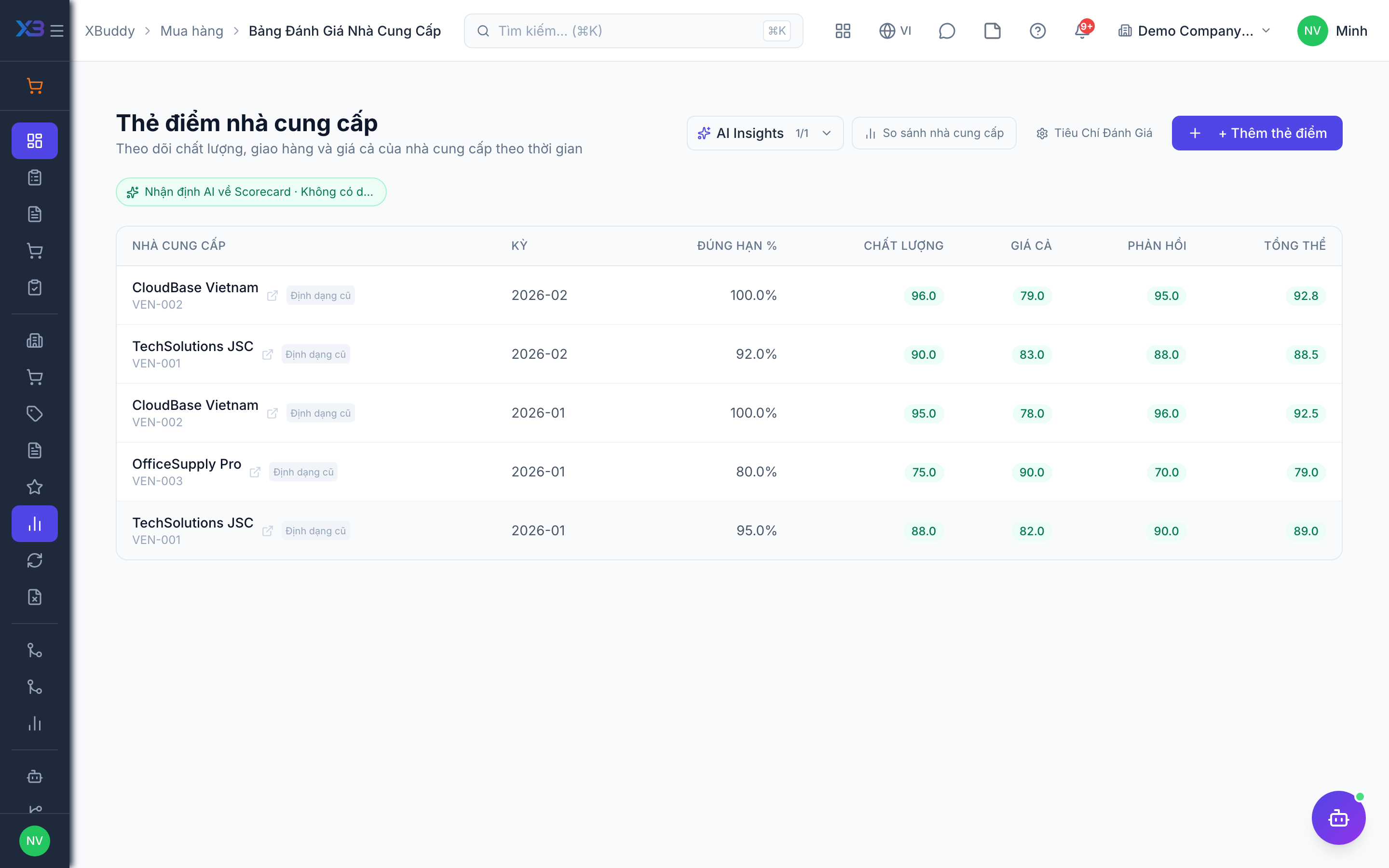
Open Procurement → Scorecards (/procurement/scorecards) to review scores by your configured criteria, and /procurement/scorecards/compare to compare several vendors side by side.
Tips & common mistakes
- Price list tiers are found automatically when you enter a PO line, so keep them current.
- Set scorecard criteria first; scores are only as meaningful as the criteria you define.
- Vendor contracts can also go to legal review and e-signature from the contract management app.
- Do not delete a vendor that has history; deactivate or stop using it instead.