Time logs and expenses
When to use
Use time logs and expenses to record what a project really costs: the hours people worked and the money spent. Approved hours are the basis for invoicing a customer, so this is the step that decides whether work gets paid.
Before you start
projects:writelets you log time on a project. Approving or rejecting hours needsprojects:approve_timelog. Approving expenses needsprojects:approve_expense.- The settings below are in Settings (
/projects/settings):projects.time_logging_enabled(on),projects.expense_tracking_enabled(on),projects.self_approval_allowed(on),projects.billable_by_default(off by default, on for new companies),projects.time_log_post_approval_adjust(on), andprojects.expense_rebilling(off by default, on for new companies). - Hours from the task daily log also land in the project’s time logs (see Daily log and notes).
Steps
Log hours
Open the project’s Time logs tab and add an entry with the date, hours, and the task. If projects.billable_by_default is on, new entries start as billable.
Approve or reject
A person with projects:approve_timelog approves or rejects entries one by one or in bulk. When projects.self_approval_allowed is on, you can approve your own hours.
Check the summary
Open Time summary on the project for a rollup of billable hours.
Record expenses
Open the project’s Expenses tab to add expense claims. An approver with projects:approve_expense approves them. With projects.expense_rebilling on, approved expenses can be billed again to the customer.
Bill overtime (optional)
Turn on projects.bill_overtime_premium if overtime should be billed at a premium. The default multipliers are 1.5 for regular days, 2 for Sundays, and 3 for holidays. They are the settings projects.overtime_bill_multiplier_regular, projects.overtime_bill_multiplier_sunday, and projects.overtime_bill_multiplier_holiday.
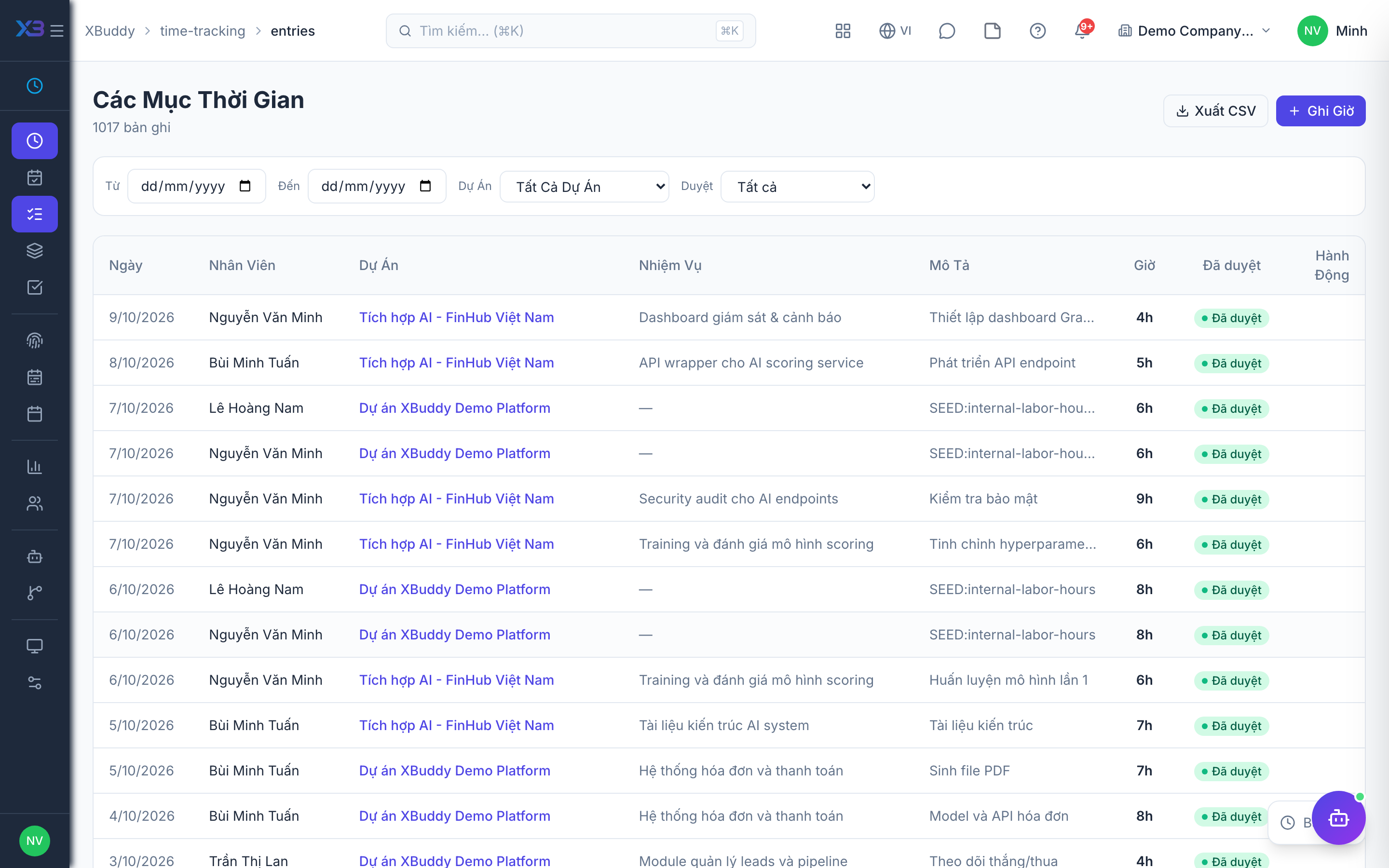
Statuses
| Status | Meaning |
|---|---|
| Pending | Logged and waiting for approval. |
| Approved | Counted in cost. Billable hours become unbilled and can be invoiced. |
| Rejected | Not counted. |
| Billed | Already put on an invoice. |
Tips & common mistakes
- Only approved hours can go on an invoice. Hours stuck in pending are the most common reason billing looks low.
- Internal projects accept all costs, but hours are always non-billable.
- Approving does not need
projects:write; give the approver the dedicated permission. - Labor cost can come from your Accounting internal rates. If a rate is missing, the hour records a cost of 0 and shows a warning, so fix the rate and reprice.