Portfolio and resource capacity
The portfolio view rolls every project into one dashboard; capacity planning keeps the team from being over-committed.
When to use
Use the portfolio when you need to see which projects are healthy and which need attention, for example in a weekly management review. Use the workload and capacity views before you commit a person to new work or when someone says they are overloaded.
Before you start
projects:readis enough to see the portfolio, resources, workload, and capacity.- Reassigning work from the workload view also needs
tasks:write. - Allocating people to a project needs
projects:resource_allocate. - Only people in the Members directory appear in resources, workload, and capacity. Add people there first (see Project roles and members).
- Project Teams (
/projects/teams) appear only whenprojects.team_managementis on. It is off by default for existing companies and on for new ones.
Steps
Review the portfolio
Go to Portfolio (/projects/portfolio) to see all projects with schedule, budget, and health at a glance. Open Overview (/projects) for the headline numbers.
Check spend across projects
Open Budget & Expenses (/projects/budget). Spend is shown across four legs: labor, expenses, purchase orders, and work orders.
Balance workload
Open Resources & workload (/projects/workload) to see each person’s assigned effort and spot overloads. People with no assignments still appear, with zero hours, so you can see who is free.
Plan capacity
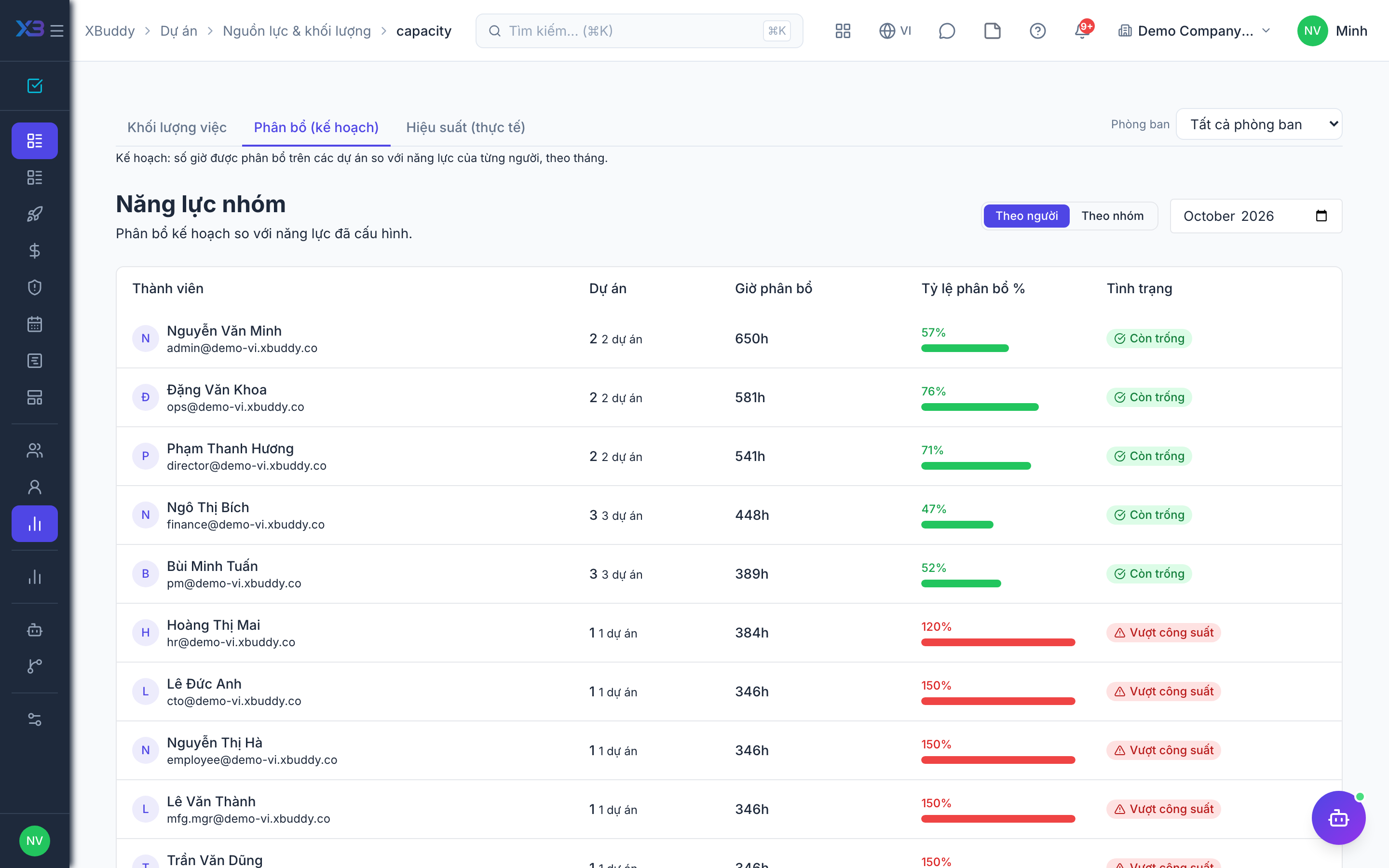
Use Capacity (/projects/resources/capacity) to compare available hours with demand before committing new work. It has views by person, by logged hours (heatmap), and by team. Utilization per person is on Resources (/projects/resources).
Tips & common mistakes
- A person missing from capacity almost always means they are not in the Members directory yet.
- Logged hours fill the utilization numbers. If people do not log time, utilization will look low even when they are busy.
- Use the team view only if teams are turned on; otherwise start from the person view.
- Do not read the portfolio as a final financial statement. Use the project’s own profitability tab for profit and loss.