Public portal and access settings
Share selected guides with customers, and control who can see what.
When to use
Turn on the public portal when you want customers to self-serve from some guides without signing in. Use the access settings to limit articles by author scope.
Before you start
- Portal settings need
kb:write; access settings needknowledge:admin. knowledge.public_access_allowed(default: on) must be on, otherwise the whole portal returns not found.
Beta: the portal is read-only and has only three read endpoints (categories, list, article detail). There is no branded help-center site yet.
Steps
-
Mark the relevant categories public at
/knowledge/settings/categories. -
Publish the articles and set them to Public.
-
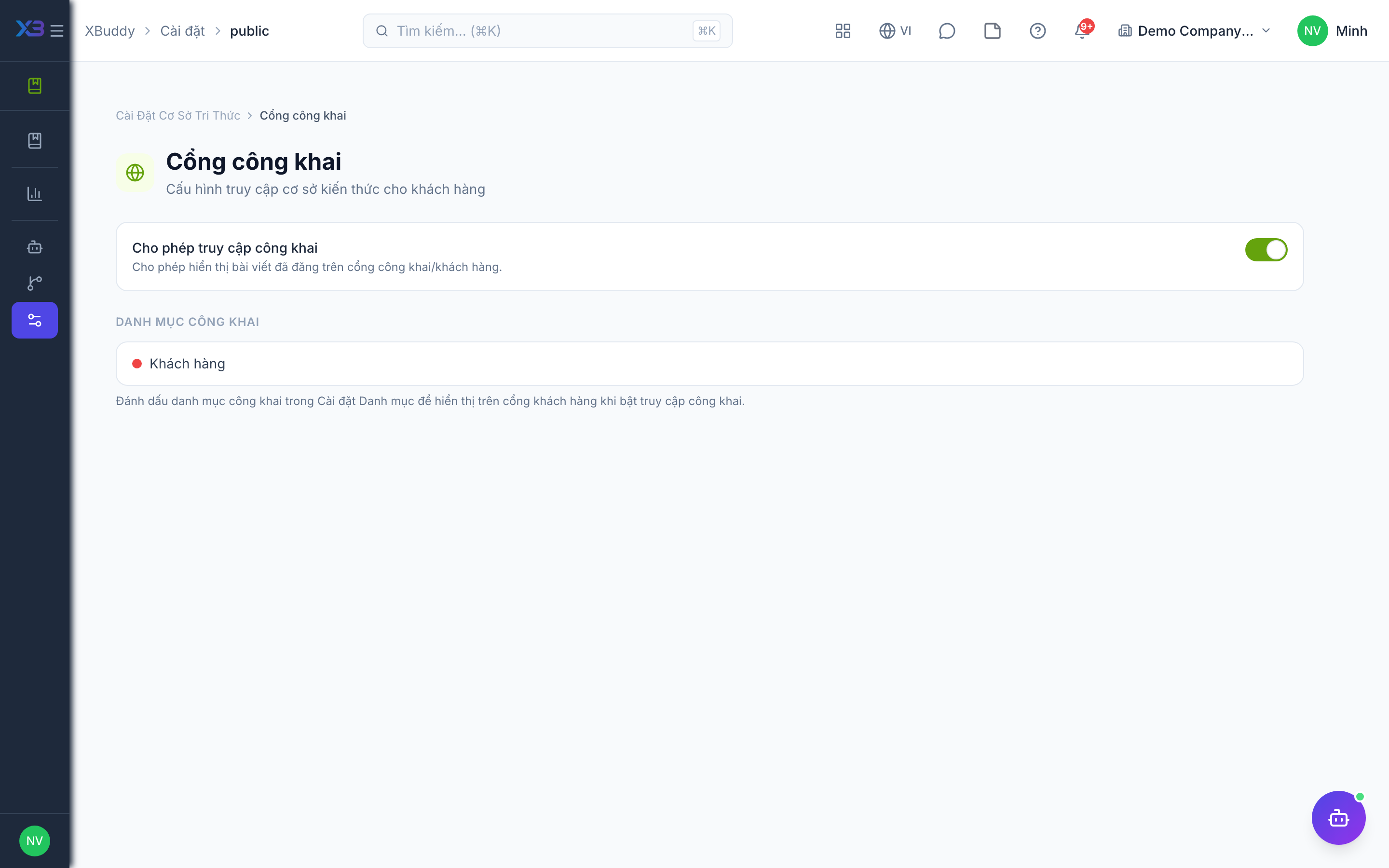
Open
/knowledge/settings/publicto turn on the portal and copy the portal address. -
Share the address with customers; articles appear at
/portal/kb/[tenantSlug]. -
Set data scope at
/knowledge/settings/accessand review search settings, including reindexing, at/knowledge/settings/search.
Tips & common mistakes
- An article shows only if it is published, Public, and in a public category; uncategorized articles never show.
- Do not rely on the portal for private data; always check the three conditions.
- Reindex after bulk imports if search results look incomplete.