Running a payroll cycle
When to use
Use this at the start of every pay period: to create the run, check it is ready, get it approved and paid, and publish payslips. The run is the single place where attendance, approved leave, salary structures and variable pay become gross-to-net numbers per employee.
Before you start
- Permissions:
payroll:readto view runs and payslips,payroll:writeto create, submit, pay and publish,payroll:approveto approve, reject or void. - Toggle
people.payroll_block_run_on_unapproved_inputs(default on): the run is blocked while payroll inputs are unapproved. Check Payroll → Payroll inputs (/payroll/inputs) first. - Toggle
people.payroll_enforce_maker_checker(default off): when on, the approver must be a different person from the run creator.people.manager_approval_before_run(default on) applies the same creator-not-approver rule. - Toggle
people.gl_posting_enabled(default off, on for new companies): approving and paying post journal entries to the General Ledger. Set up Accounting Mapping first.
Start a new run
Go to Payroll → Payroll Runs and create a run for the pay period. XBuddy pulls active employees, their attendance, and approved leave from HR.
Review calculated pay
The run computes gross pay from salary structures, applies variable pay, and deducts PIT and BHXH. Review the line-by-line results.
Commit and publish payslips
Finalize the run to lock the numbers. Payslips are generated in Payroll → Payslips and published to each employee’s Self-Service Portal.
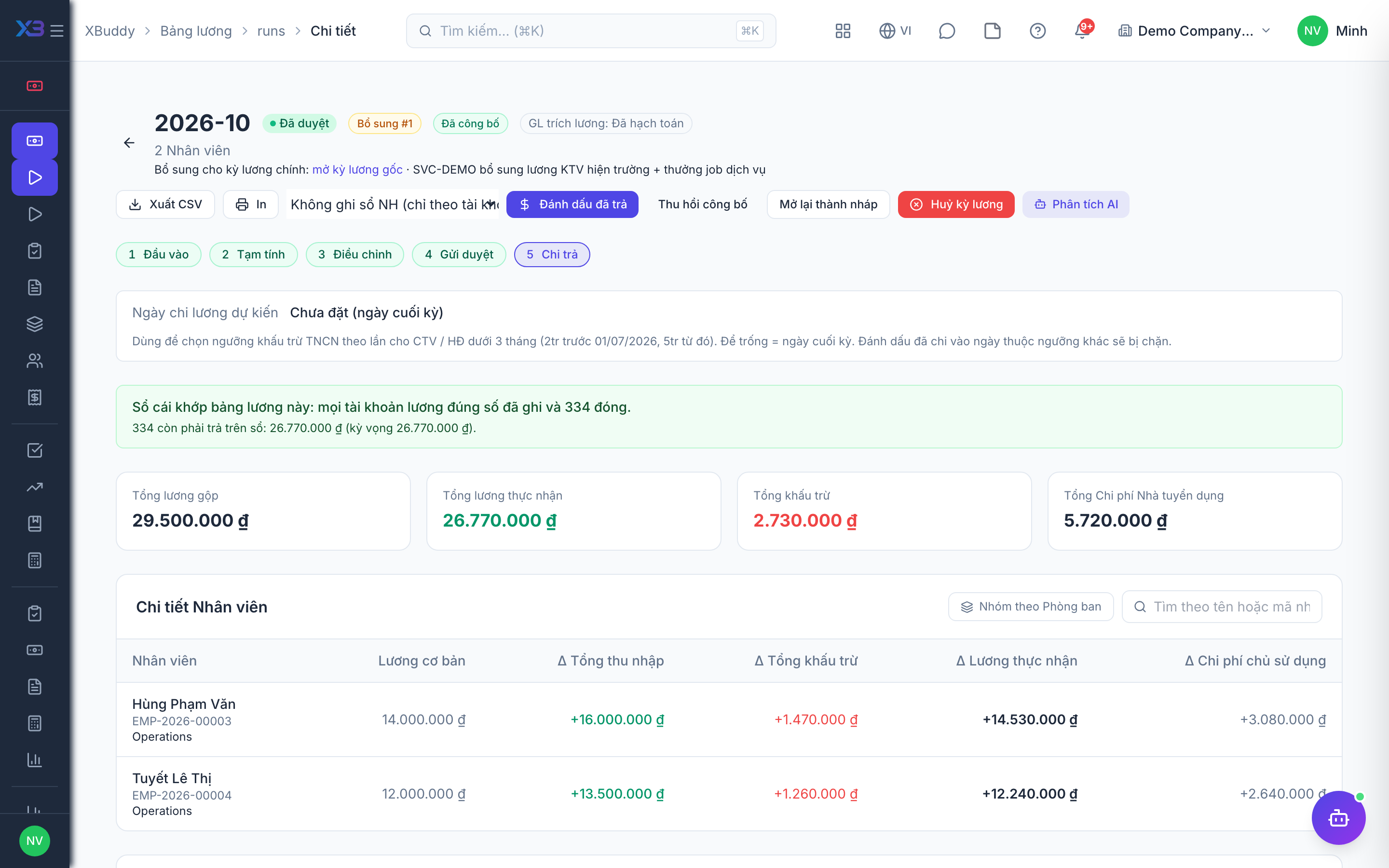
Run statuses
| Status | Meaning | Who moves it |
|---|---|---|
| Draft | Run created and calculated; you can still recalculate. | Payroll officer (payroll:write) |
| Processing | Submitted and waiting for a decision. | Payroll officer submits; approver rejects it back to Draft |
| Approved | Numbers locked; accrual posted to the GL when posting is on. | Approver (payroll:approve) |
| Paid | Disbursement recorded; payment entry posted to the GL. | Payroll officer (payroll:write) |
| Cancelled | A draft run that was voided. | Approver (payroll:approve) |
If the GL posting fails, the approval or payment is rolled back to the previous status and you see a posting-failed error, so a run is never left half-posted.
Publish payslips
After approval, Publish makes the payslips visible to employees in Self-Service. You can Unpublish with a reason. Where people.payslip_auto_publish_on is set (default: on approval), publication happens automatically, and people.payslip_email_on_finalise (default on) emails the payslip when the run is finalised. From Payroll → Payslips you can also export a PDF or send a single payslip.
Understand a number
On a payslip line you can ask XBuddy to explain a variable (where the value came from, with a stale flag if the source changed since the run) and view the per-payslip history of recalculations, adjustments and publication.
Tips & common mistakes
- Run the readiness check before creating the run; it lists the gates that would stop you, such as unapproved inputs.
- Recalculate a draft after fixing attendance or inputs instead of editing numbers by hand.
- Keep the creator and approver different people even if the toggle is off; it is the standard control for pay.
- Do not publish payslips before the run is approved unless your company has deliberately changed the auto-publish moment.
- A published run can be corrected later, but not edited directly; see the correction page.