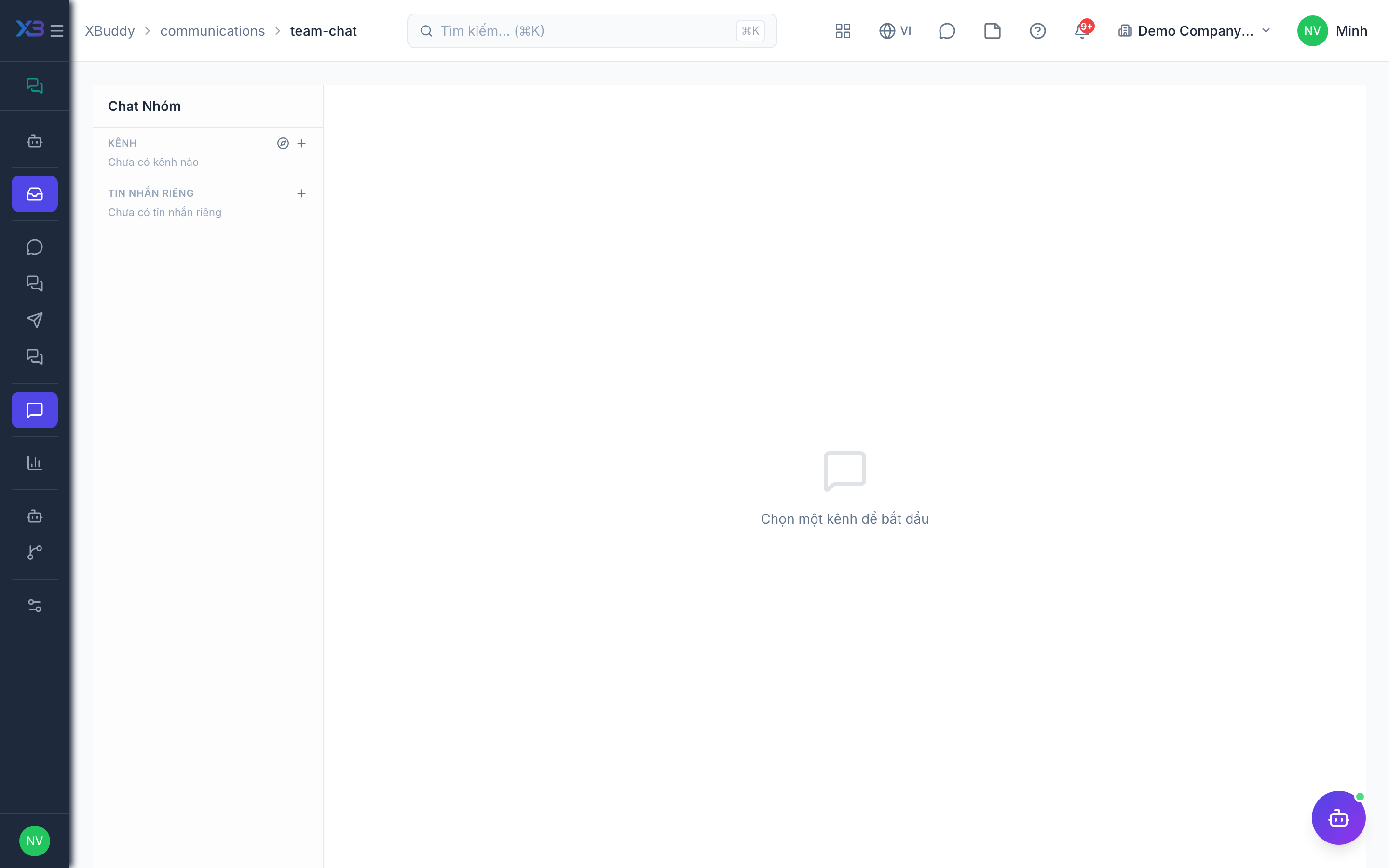
Team Chat
Team Chat is internal, staff-only messaging separate from customer channels — for quick coordination without leaving the app.
When to use
Use Team Chat for staff-to-staff conversation: a project channel, a department room, or a direct message to a colleague. It also lets you create and update work from the chat itself with work commands, so a quick request does not get lost. Keep customer-facing replies in the Inbox instead.
Before you start
internal-chat:readlets you open Team Chat at/communications/team-chat, view your channels, and join or leave public channels. Sending messages and creating channels need the write permission for Team Chat.- Work commands read data through the same permission checks as the AI copilot, so you only see what your role already allows.
- A channel can be linked to a project; you need access to that project to link it.
Steps
Open Team Chat
Go to Communications → Team Chat and pick a person or group channel.
Mention and share
Use @mentions to notify colleagues and attach files inline. Mentions trigger notifications so nothing is missed.
Create or join a channel
Create a public, private, or direct channel and add members from your company. Browse public channels and join or leave them yourself. A public channel can be scoped to the whole company or a department so members are added automatically.
React, search, and attach
React to messages with emoji, search messages in a channel, and attach files through the upload button.
Run a work command
Type a slash command in the message box: /tasks, /projects, /calendar, /docs to look things up, or /task, /done, /start to create or update a task. Lookup results are visible only to you; changes post a card to the channel.
Channel types
| Type | Who is in it | Notes |
|---|---|---|
| Public | Members join and leave on their own | Optional company or department scope |
| Private | Invited members | Members are checked against your company |
| Direct | Exactly two people | No third person can be added and you cannot leave; archive it instead |
Tips & common mistakes
- Work-command lookups are not saved to the channel; copy what you need or run the command again.
- In a channel linked to a project, /tasks is limited to that project unless you use **/tasks *** or /tasks all.
- A channel always keeps at least one admin; the last admin cannot be removed or demoted.
- Only files uploaded through the chat upload are accepted as attachments; do not paste external file links as attachments.
- If a command fails you get a short coded error (forbidden, not found, failed, or unknown command); forbidden means your role lacks access.